Making a feedback form is easy. Making one people actually finish, that returns answers you can use, takes a little thought. The difference is mostly in the questions and the length: ask one clear thing, keep it short, and pair a quick rating with one open comment, and you'll learn more than a twenty-field form ever tells you. This guide walks through what makes a good feedback form, the questions to ask by use case, a four-step build, how to get the responses emailed to you, and a free template to start from.
What Is a Feedback Form, and What Makes a Good One
A feedback form is a short form that asks people to share their opinion about an experience: a purchase, an event, a support interaction, or a product they use. At its simplest it's one rating and one comment box, and that minimal version is often the right one. The goal isn't to collect everything; it's to collect the one or two things you'll actually act on.
Three principles separate a good feedback form from one people abandon. Ask one thing at a time so a single answer can't get tangled ("rate our speed and friendliness" is two questions). Keep it short, because every extra field costs you completions, and a form people finish beats a thorough one they quit. Pair a rating with one open question, so you get a number you can track and a reason that explains it. The rating tells you the temperature; the comment tells you what to do about it.
That's really the whole philosophy. A feedback form isn't a research survey, and trying to make it one is how you end up with low response rates and data nobody reads. If you do need deeper, well-worded questions, that craft lives in our guide to good survey questions; for a feedback form, restraint is the feature.
It helps to draw a line between a feedback form and a full survey. A survey is a research instrument with many questions and a sampling plan; a feedback form is a quick, ongoing pulse you can leave running. They overlap, but the mindset differs: a survey asks "what can we learn?" while a feedback form asks "is this working, and what's the one thing to fix?" Keep that framing and you'll resist bloating the form into something people won't finish. Nielsen Norman Group's research on keeping online surveys short backs this up: completion drops fast as forms get longer.
Timing matters as much as wording. A feedback form sent while the experience is fresh, right after a purchase, an event, or a support chat, gets honest, specific answers. The same form sent a week later gets vague ones, and one sent before the experience is finished gets premature ones. Decide the moment you'll ask before you settle the questions, because the moment shapes what people can actually tell you.
What Questions to Put on a Feedback Form
The right questions depend on what you're getting feedback on. Here's a bank by use case, written to copy and trim. Pick a few, not all.
Customer and CSAT feedback:
- How satisfied are you with your experience overall?
- How easy was it to get what you needed?
- What's the one thing we could do better?
- How likely are you to use us again?
Post-event feedback:
- How would you rate the event overall?
- Which part was most useful to you, and why?
- How was the pace, too slow, about right, or too fast?
- What would you want us to change next time?
Product feedback:
- How well does the product fit what you need?
- Which feature do you use most?
- What's frustrating or missing?
- What were you trying to do the last time you got stuck?
Employee and internal feedback:
- How clear are you on what's expected of you?
- How supported do you feel by your manager?
- What would make the biggest difference to your week?
Website and support feedback:
- Were you able to find what you came for?
- How easy was it to get your question answered?
- What almost made you leave?
- How could we have helped faster?
Notice the shape: each survey is mostly "how" and "what" questions that leave the verdict to the respondent, plus one open prompt for the reasons. Resist the urge to add a fifth and sixth field just because you have someone's attention. If a question's answer won't change something you do, it doesn't belong on the form.
For the underlying rules of phrasing any of these neutrally, so they don't lead the answer, the Pew Research Center's guidance on writing survey questions is a reliable reference.
A practical sequencing tip: put the rating first and the open comment last. People will give you the quick score even if they bail before typing a sentence, so you capture the number from almost everyone and the reasons from the motivated few.
How to Make a Feedback Form in 4 Steps
Building the form itself is quick once the thinking is done. Four steps cover it.
1. Pick your questions. Start from the use-case bank above and choose three or four, including exactly one open comment. Write down what decision each answer will inform; if you can't, cut the question. This step is 80 percent of the quality, and it happens before you touch a builder.
2. Add a rating scale. Choose the scale that matches what you're measuring (the next section breaks down stars vs 1-to-5 vs NPS) and label its ends clearly, so "5" obviously means best. A single, well-labeled rating is the backbone of the form.
3. Set up delivery. Decide where responses should go: into a dashboard, your inbox, a team chat, or your own backend. You'll set this once, and it's what turns a form into something you actually notice. The next section covers the routing options.
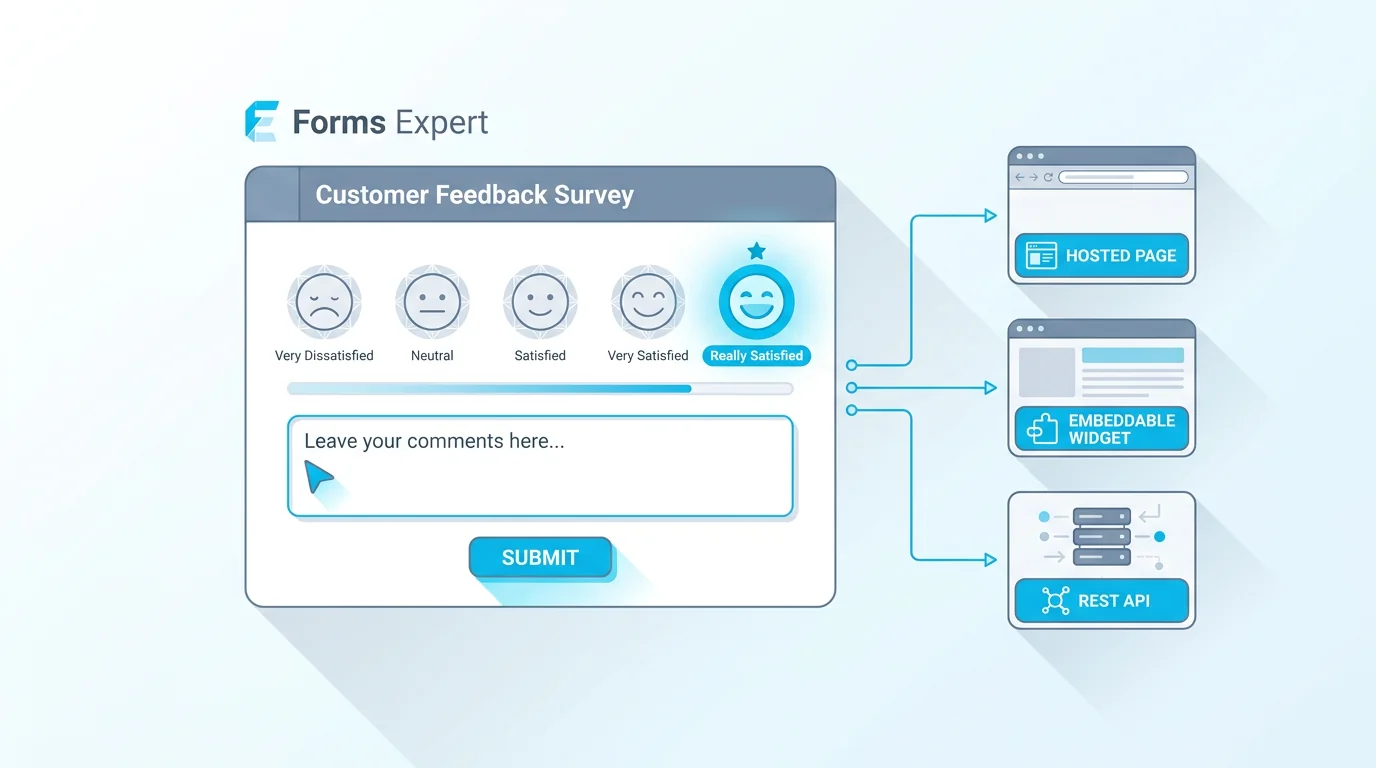
4. Publish it. Ship the form as a hosted page you can link to, an embedded widget on your site, or both at once. In Forms Expert every published form is also a REST endpoint, so the same form works as a link, an embed, and an API without rebuilding. Building and publishing a feedback form works on every plan, including Free.
That's the whole build. The hard part was choosing good questions; the tool part is minutes.
A small habit pays off here: fill out your own form once before you share it. Reading your questions as a respondent rather than the author catches the awkward wording and the field you forgot to make optional, and it takes about thirty seconds.
How to Make a Feedback Form That Emails You
"How do I make a feedback form that emails me the responses?" is one of the most common questions, and the answer is that good form tools route responses for you, no inbox-watching required.
With Forms Expert, each submission can be delivered several ways at once. Responses land in the dashboard by default, and you can also have them sent to email, pushed to Telegram for a team that lives in chat, or delivered to your own server through a signed webhook that retries if your endpoint is briefly down. Developers can skip the UI entirely and pull submissions through the REST API. So "emails me the responses" is just one of the routing options, and you can combine them, like a dashboard record plus an email plus a Telegram ping for anything urgent.
One honest note on reading the results: a basic results overview, enough to see your responses and the headline numbers, is available on every plan, including Free. The deeper analytics, per-field breakdowns and the satisfaction dashboards, are part of the Pro tier. So routing and collecting feedback is free; the advanced analysis is the paid upgrade, and it's worth being clear about which is which before you build.
One more decision worth making up front: anonymous or identified. Anonymous feedback often gets you franker answers, especially from employees, while identified feedback lets you follow up with an unhappy customer and actually fix their problem. There's no universally right choice, but pick deliberately and tell respondents which it is, since people answer differently when they know their name is attached.
Wherever the responses land, decide who owns them. Feedback that arrives in a shared inbox or channel and gets read on a schedule turns into action; feedback that pools in a dashboard nobody opens may as well not exist. Route it to where the person who can act on it will actually see it.
Rating Scales for Feedback Forms
The rating is the heart of a feedback form, and the scale you pick shapes what you can do with the answers. There's no single best one; it depends on what you're measuring.
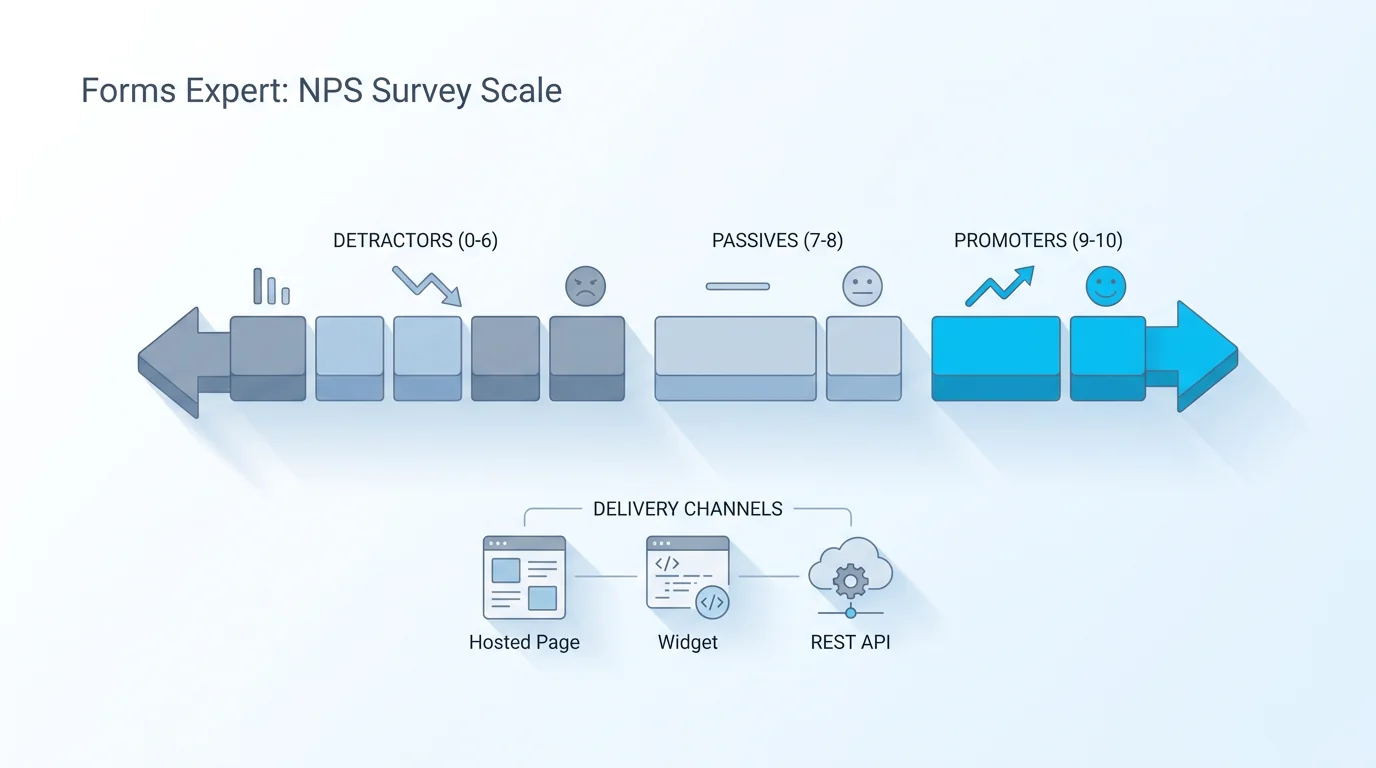
A star rating is friendly and instantly understood, great for a quick overall score. A 1-to-5 numeric scale is the CSAT workhorse, easy to report as "percentage who picked 4 or 5." An NPS 0-to-10 scale measures likelihood to recommend and shines when you want to track loyalty over time rather than capture a one-off reaction, which our NPS survey guide covers in depth. And a plain thumbs up/down is the lowest-friction option when you only need a pulse. The table sums up when each fits.
Whatever you choose, label it and keep it consistent. A scale whose endpoints aren't labeled invites people to read it backward, and switching scales between surveys means you can't compare results over time. Pick one per metric and stick with it.
A related question is how many points to offer. More points capture finer distinctions but ask more of the respondent, and past about seven most people can't meaningfully tell one option from the next. For a quick feedback form, five points (or five stars) is the comfortable default that nearly everyone reads the same way.
And don't be afraid to offer a neutral or N/A option where it's honest. Forcing a rating on someone who genuinely has no opinion just adds noise, while letting them skip keeps the scores you do get clean.
| Scale | Looks like | Best for |
|---|---|---|
| Star rating | 1 to 5 stars | A quick, friendly overall score people grasp instantly |
| Numeric 1 to 5 | A labeled 1-to-5 scale | CSAT-style satisfaction you'll report as a percentage |
| NPS 0 to 10 | An 11-point recommend scale | Tracking loyalty over time, not a one-off reaction |
| Thumbs up / down | Two buttons | A frictionless pulse where nuance isn't needed |
How to Share or Embed a Feedback Form
A feedback form only works if it reaches people at the right moment, so how you share it matters as much as what's on it.
The simplest option is a hosted link: a clean page you can drop into an email, a chat message, or a QR code printed on a receipt or table tent. The QR trick is underrated for physical spaces, since it turns "please visit our website and find the feedback page" into a two-second scan. The second option is to embed the form directly on your site or in your app, so people give feedback without leaving the page. A good embed auto-resizes to its content so it never gets an awkward scrollbar or a guessed height.
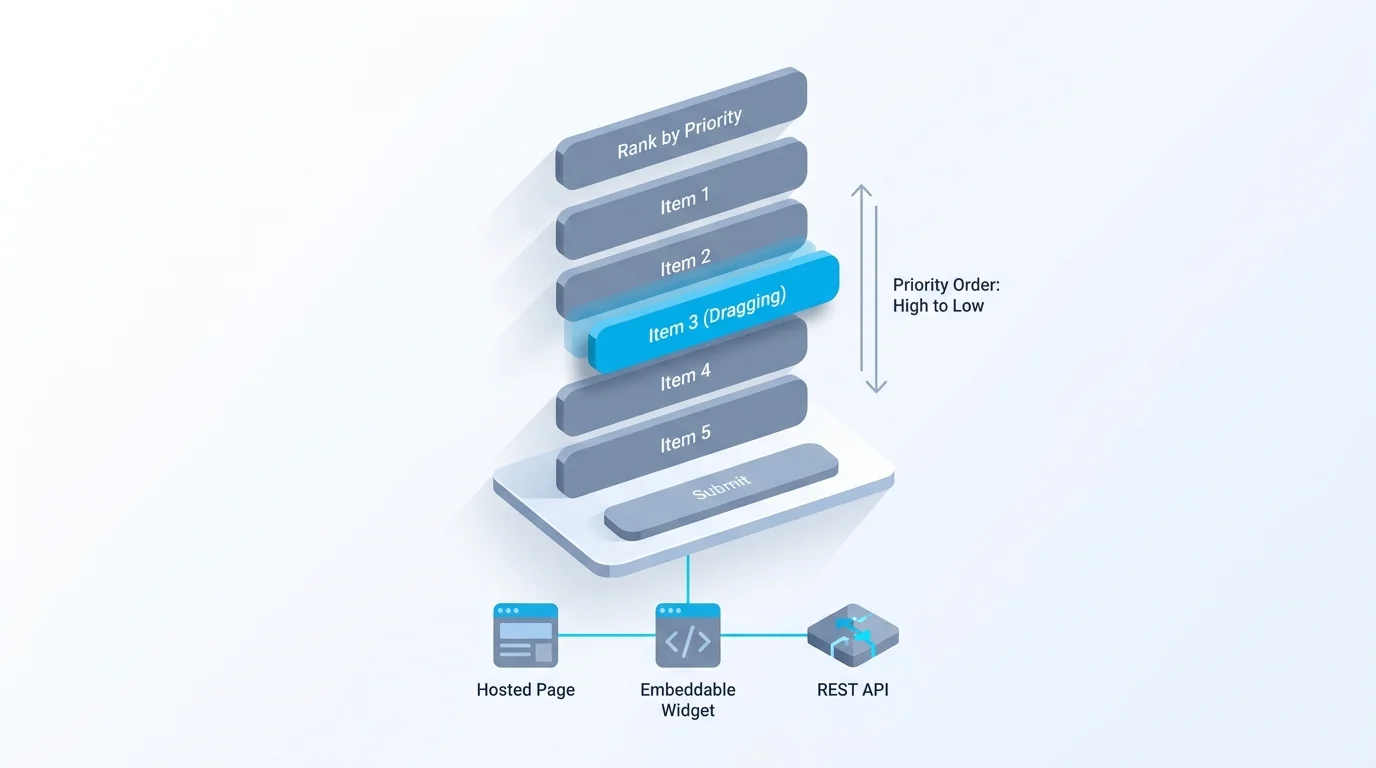
With Forms Expert you don't choose one or the other: the same form is a hosted page, an embeddable widget, and a REST endpoint at once. Publish once and share it as a link, embed it on a thank-you page, and trigger it from your backend, all from a single form. That flexibility is why a hosted or embeddable form scales better than a static document. A form in Google Docs or Word can be filled in, but it can't collect, route, or chart responses on its own, which is the whole job of a feedback form.
Placement is the quiet half of sharing. The best spot is wherever the experience just happened: a thank-you page after checkout, the closing screen of an event, the email that confirms a resolved ticket. Catch people in that window and your response rate climbs; ask them out of context days later and it falls. Put the form where the moment is.
Start From a Free Feedback Template
You don't have to build from a blank page. Forms Expert has a ready customer feedback survey template built on the pattern this guide recommends: a satisfaction rating plus the open comment behind the score, ready to edit and send. Starting there saves the structural decisions and lets you focus on tailoring the questions to your situation. The wider feedback template category has variants for other cases if that one isn't quite the fit.
Templates are free to use on every plan. Submission limits depend on your tier, so check the plan that matches your volume, but nothing about starting from a template is gated. Once you've edited it, you've got a working feedback form you can publish as a link or an embed in minutes.
The recap is short because making a feedback form is short: choose three or four questions you'll act on, pair a labeled rating with one open comment, set up where responses go, and publish. For the deeper feedback program that grows out of a single form, see our guide to customer feedback surveys. For now, start from the template or the home page and get the first real answers in today.
And treat the first version as a draft. The fastest route to a great feedback form is to ship a decent one, read the first batch of answers, then cut or sharpen based on what people actually tell you. A form you improve from real responses beats one you agonize over before launch.
Frequently Asked Questions
Keep it to the essentials: one rating question and one open comment. Pick a single thing you want feedback on, add a labeled rating scale (stars or 1 to 5), add an open "what's the one thing we could do better?" field, and publish it as a link or an embed. That's a complete, useful feedback form. Resist adding more fields unless each one's answer will change something you do. In Forms Expert you can build and publish this on any plan, including Free, in a few minutes, and the responses collect automatically in a dashboard.