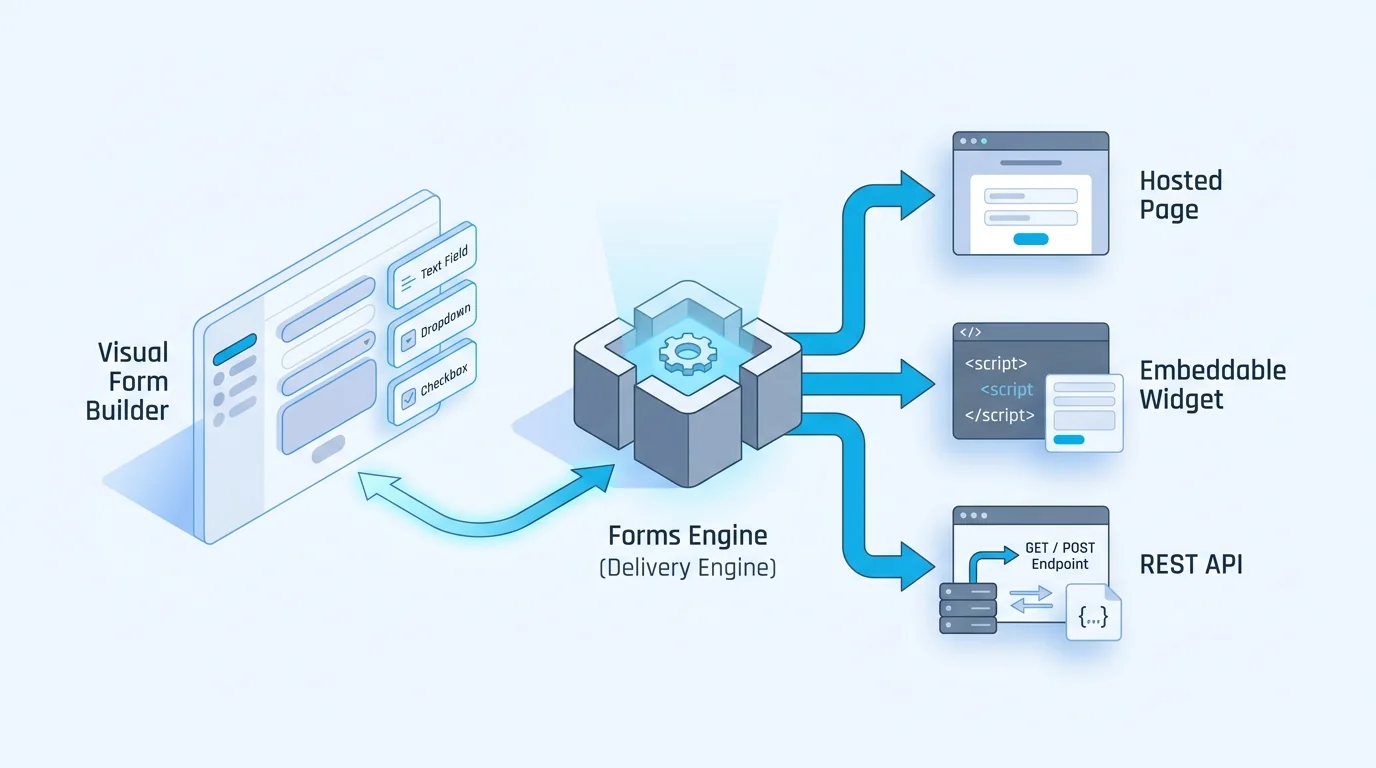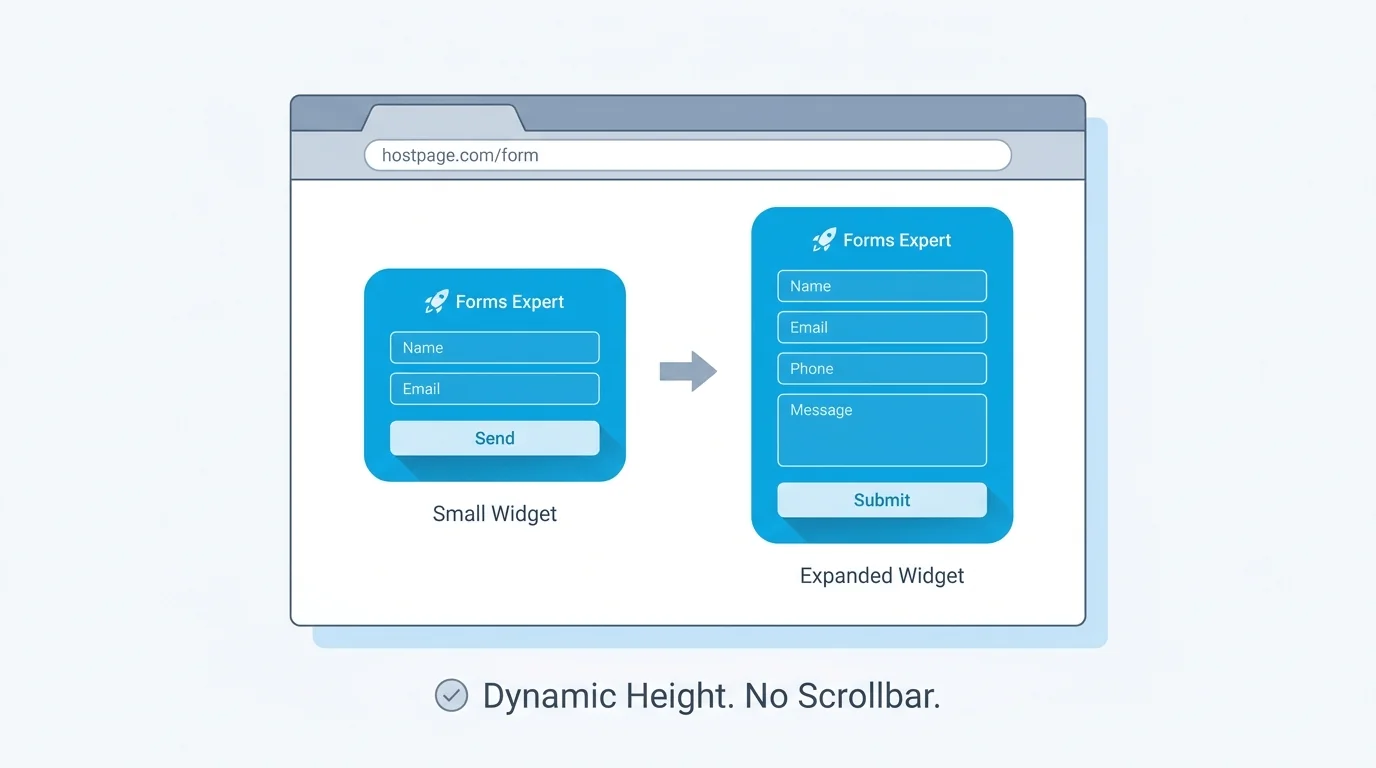
Embedding a form usually means dropping an <iframe> with a hard-coded height onto the page and hoping. Pick a height that is too short and your form gets an inner scrollbar. Pick one that is too tall and there is a band of dead whitespace under the submit button. Add a conditional field or a multi-step layout and the guess is wrong on every step. The fix is an embed that measures itself and tells the host page how tall it really is — which is exactly what the Forms Expert widget does.
The Fixed-Height Problem
An iframe is a window into another document, and the host page has no idea what is inside it. The browser will not size an iframe to its contents the way it sizes a <div>; it uses whatever height you set and clips or scrolls the rest.
That is tolerable for a static contact form. It falls apart the moment the form's height changes at runtime:
- A conditional field appears when someone picks "Other," pushing everything down.
- Swapping a short first step for a long second one in a multi-step layout changes the height mid-flow.
- A validation error adds a line of red text under three fields at once.
- Save-and-continue restores a half-finished draft that is taller than the empty form.
In every case the document inside the iframe is now a different height than it was a second ago, and a fixed-height embed cannot know.
One Line of Vanilla JS
The Forms Expert embed is a single vanilla-JavaScript include — no build step, no package to install, no framework assumed. You drop the snippet where the form should appear and the script injects the iframe and wires up the resize handling for you:
That is the whole integration. The widget loads the form's embed surface — the auto-resizing page served at /e/{slug} — into an iframe, then keeps that iframe sized to its contents for the rest of the session. Because it is plain JavaScript, it runs the same way inside a static HTML page, a WordPress theme, a Webflow site, or a component in any framework.
How the Auto-Resize Works
The trick is that the document inside the iframe is the only thing that can accurately measure its own height, so that is where the measurement happens.
Inside the embed page, a ResizeObserver watches the form's root element. Whenever the rendered height changes — a step transition, a revealed conditional field, a validation message — the observer fires. The embed page then sends its new height up to the host with postMessage. The host-side script, the one you included in that single line, listens for those messages and sets the iframe's height to match.
The result is an iframe that tracks its contents pixel-for-pixel. There is no inner scrollbar, because the frame is never shorter than the form, and no dead whitespace, because it is never taller. And it keeps working through every height change, not just the initial render, because ResizeObserver keeps firing for as long as the form is on screen.
The Events the Widget Reports
Height is not the only thing that travels over postMessage. The widget also reports where the respondent is in the form, so the host page can react without ever reading the form's internals. It emits four lifecycle events:
- ready — the form has loaded and rendered.
- submitting — a submission is in flight.
- submitted — the submission succeeded.
- redirect — the form is sending the visitor onward to a configured URL.
These let the host do useful things at the right moment: fire an analytics event on submitted, swap the embed for a thank-you panel, or show a spinner while submitting is active. You are reacting to events the widget hands you, not scraping state out of an iframe you do not control.
React, Vue, or Vanilla — the SDK, or the Raw Embed
If your stack is React (or Vue, or just vanilla JS), reach for the published SDK: @forms.expert/sdk. Install it from npm with npm install @forms.expert/sdk, or pull the CDN build from https://unpkg.com/@forms.expert/sdk. It ships framework bindings — @forms.expert/sdk/react, @forms.expert/sdk/vue, and @forms.expert/sdk/vanilla — and it is the recommended way to embed.
The React binding renders the form inline rather than in an iframe, so the form is part of your component tree. You wrap your app in FormsProvider and drop in a FormsExpertForm component. It accepts a theme and language, exposes the available themes and a setTheme call, and hands you onSuccess / onError submission callbacks so your component reacts to the result directly.
The SDK is the lead path, but it is not the only one. Two dependency-free options remain when you want them:
- Render the raw iframe yourself by pointing it at /e/{slug} and adding a small message listener for the height events — useful when you want full control over the element with no package at all.
- Skip the UI entirely and post to the form's REST endpoint with fetch, which is the right move on a server or when you have already built your own form markup.
Use the SDK for the inline, framework-native experience; reach for the raw iframe or the REST endpoint when you want a no-dependency or server-side path.
That endpoint is universal: every published form accepts programmatic submissions at POST /f/{resourceId}/{slug} with a publishable key, no matter which type it is. So the same form you embedded with one line of script can also be filled from your own React component, a mobile app, or a backend job — same definition, same validation, same delivery.
When to Skip the Widget Entirely
The auto-resizing widget is the right tool when you want the real form UI — its 35 field types, multi-step layout, conditional logic, and built-in anti-abuse (honeypot, rate limiting, and Cloudflare Turnstile CAPTCHA) — without rebuilding any of it.
Skip it when you are not rendering a form at all. If you are collecting structured data from a backend service or piping JSON in from another system, post straight to the REST endpoint instead. An api-type form is built for exactly this: it has no hosted or embed UI and rejects the interactive and layout field types, which makes it a clean target for free-form JSON intake rather than a rendered form.
The widget is for surfaces a human looks at. The endpoint is for everything else. Most teams use both, against the same form definitions.
Wrapping Up
One thing worth knowing before you ship: the iframe still needs room to grow. If you wrap the embed container in a parent with a fixed height or overflow: hidden, the form can resize itself all it wants and your own CSS will clip it anyway. Give the container a natural block height and let the widget drive it. That single rule is what trips most people up after a clean integration.
From there it is a one-line include and the resizing takes care of itself. If you are weighing this against a survey-first tool, the Typeform alternative comparison digs into the trade-offs, and the pricing page lays out the flat per-month tiers with no per-response overage cliff.
Frequently Asked Questions
Embedding a form takes one line of vanilla JavaScript. You place a container element where the form should appear and include the embed script; the script injects an iframe pointed at the form's embed surface, served at /e/{slug}, and handles sizing automatically. There is no build step, no package to install, and no framework requirement, so the same snippet works in a static HTML page, a WordPress or Webflow site, or a component in any JavaScript framework. The embedded form carries the full feature set of the form definition, including its field types, multi-step layout, conditional logic, and anti-abuse protections, because it loads the real form rather than a stripped-down copy.