Whether it's a workshop, a webinar, a club, or a conference, a registration form is how people tell you they're coming. Get it right and sign-ups feel effortless; get it wrong, with too many fields or a forced account, and you watch would-be attendees bail at the last step. This guide covers exactly what a registration form should include, the fields that matter, a five-step build, how to let people register and upload files without an account, and how to cap or close sign-ups when you need to.
What Is a Registration Form, and What Should It Include
A registration form collects the information you need from people signing up for something: an event, a course, a membership, a waitlist. Its whole job is to turn interest into a confirmed, contactable list of registrants, so the bar for every field is simple, do you actually need it to run the thing.
The standard registration form is shorter than people expect. At its core it's a name, an email to confirm and follow up, and whatever single detail defines the sign-up, like which session or ticket type someone wants. Everything beyond that, phone number, dietary needs, a file upload, is situational, added only when it serves the event. The most common mistake is treating a registration form like an intake interview and asking for ten things when three would do, which costs you completions for data you'll never use.
There's a usability angle worth respecting here too. Nielsen Norman Group's research on web form design is consistent on this: every field you add lowers completion, so the shortest form that still gets you what you need almost always wins. A registration form is a gate you want people to walk through, not a wall.
It also helps to know what a registration form is not. It isn't an account system, so people shouldn't have to log in to use it. It isn't a payment page, so it collects the sign-up rather than the money. And it isn't a survey, so it asks what you need to admit someone, not everything you're curious about. Keeping those boundaries clear is what keeps a registration form fast, and fast is what gets people through it.
Registration forms show up everywhere people gather: a conference collecting attendees, a gym signing up members, a workshop capping seats, a webinar building a list, a community event managing RSVPs. The details differ but the shape is the same, a short, friendly form that turns a maybe into a yes and hands you a list you can actually contact.
The Fields a Good Registration Form Needs
Think of registration fields in two buckets: the core handful every form needs, and the event-specific extras you add on purpose. The table sorts the usual ones.
The core fields are the ones that make the registration usable: a name so you know who's coming, an email to send confirmations and reminders, and a consent or opt-in so you have permission to contact and store their details. Most events also need one defining choice, the ticket type, the session, the date. The event-specific fields, a phone number for day-of contact, dietary or accessibility needs, a file upload for a ticket or document, earn their place only when the event actually uses them. If you won't read a field's answers, cut it.
One field deserves special care: anything about accessibility or dietary requirements signals that you've planned for everyone, and getting that input through the form is far better than discovering needs on the day. Making those fields clear and easy to complete is part of accessible form design, which the W3C's forms tutorial covers well, including labeling and grouping that help every registrant, not only those using assistive tech.
A quick word on order: put the easy, expected fields first (name, email) and the heavier ones (a file upload, a long list of options) later, once someone has already invested a few seconds. People who've started a form are far more likely to finish it, so front-loading the easy fields builds the momentum that carries them past the harder ones.
Don't skip the consent field, especially if you'll email registrants afterward or store their details. A clear checkbox that states what you'll do with the data, contact them about the event and keep their info for a defined period, isn't just polite; it's what makes your follow-up legitimate. It costs one line on the form and saves a real headache later.
| Field | What it's for | Core or optional |
|---|---|---|
| Full name | Knowing who's registered | Core |
| Confirmations, reminders, updates | Core | |
| Consent / opt-in | Permission to contact and store details | Core |
| Ticket type or session | Which option they're signing up for | Often core |
| Phone | Day-of contact for events | Optional |
| Dietary / accessibility needs | Planning an inclusive event | Event-specific |
| File upload | A ticket, ID, or supporting document | Optional |
How to Make a Registration Form in 5 Steps
With the fields decided, building it is fast. Five steps cover most registration forms.
1. Pick your fields. Start from the core three (name, email, consent) and add only the event-specific fields you'll use. Write the form for the attendee, not the spreadsheet.
2. Add a file upload if you need one. If registrants must attach a ticket, an ID, or a document, add an upload field. The next section covers doing this without forcing an account.
3. Split a long sign-up into steps. If you genuinely need a lot of information, break it into a multi-step form so it feels manageable instead of a wall of fields. If you want people to be able to start now and finish later, save-and-continue does that, and it's available on the Starter plan and up rather than on Free, so plan for that if resumable sign-ups matter to you.
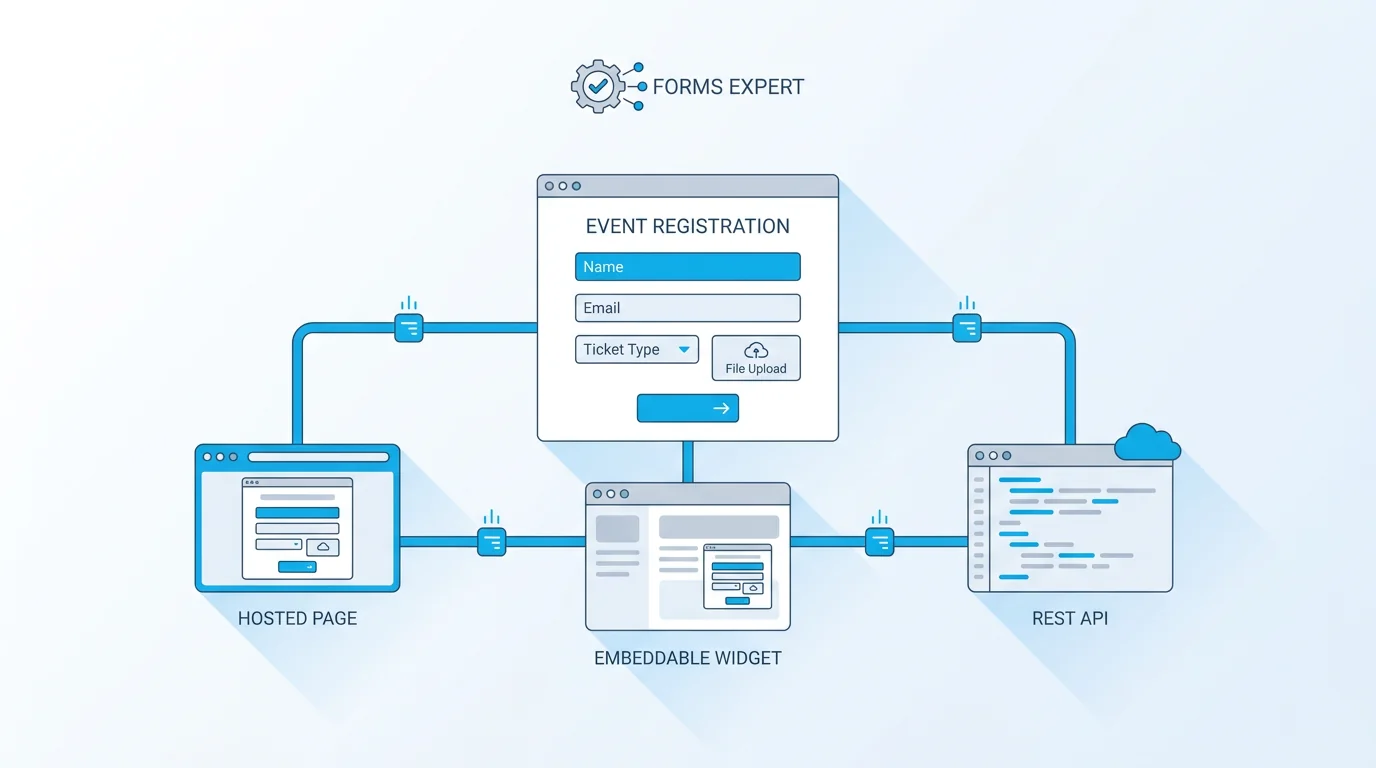
4. Publish it. Ship the form as a hosted page you can link to, an embedded widget on your event site, or both. In Forms Expert every published form is also a REST endpoint, so the same registration form works as a link, an embed, and an API without rebuilding.
5. Route the entries. Decide where sign-ups go: the dashboard, your email, a team chat, or your own backend through the API. Set it once and every new registration arrives where you'll see it. Building, publishing, and collecting registrations works on every plan, including Free.
A worthwhile sixth habit, even though it isn't strictly a build step: set up a confirmation. An automatic confirmation email reassures registrants that their sign-up went through and gives them the details to show up, which cuts down on "did my registration work?" messages and no-shows alike. It's the small touch that makes a registration feel finished.
A Registration Form People Can Fill Without an Account
The fastest way to lose registrations is to make people create an account first. Every "sign up to sign up" step sheds attendees, so a good registration form asks for nothing but the fields, no respondent login, no password to remember.
With Forms Expert, registrants fill out the form and even upload files, a ticket, an ID, a document, without creating an account or signing in. That alone removes one of the biggest sources of drop-off, especially on mobile where account creation is most painful. The form is just a page or an embed they complete and submit.
One honest caveat on those uploads: files are accepted and stored, but they are not virus-scanned, so handle attachments from the public with the normal caution you'd apply to any file from an unknown sender. The form's protection is against spam and abuse, not malware: a hidden honeypot field, rate limiting, and an optional CAPTCHA keep bots out, which is a different job from scanning a file's contents. It's worth being clear about that distinction so you set the right expectations for whoever processes the uploads.
There's a privacy upside to the no-account approach too. Because registrants aren't creating a profile, you're only holding the information they entered for this one event, not building a standing account you have to secure and maintain. Pair that with a clear consent field and you've collected what you need with the lightest footprint, which is kinder to attendees and simpler for you to manage later.
This matters most on mobile, where most event registrations now happen. Typing an email and tapping a few choices is easy on a phone; creating an account, verifying it, and remembering a password is exactly the friction that makes someone close the tab and forget to come back. A no-account form respects the small screen, and your completion rate shows it.
How to Embed a Registration Form on Your Site
A registration form should live where people decide to attend, which usually means on your event page, not on a separate site they have to be sent to.
You have three ways to share it. A hosted link is the simplest: a clean sign-up page you can put in an email, a social post, or a QR code on a printed flyer or poster, which is perfect for in-person promotion. Embedding the form puts it directly on your event page, so people register without leaving, and a good embed auto-resizes to its content so it never gets a scrollbar or a guessed height as the form changes. The third option is the REST endpoint every published form exposes, for teams that want to wire registration into their own app.
The nice part is you don't pick just one. The same registration form is a hosted page, an embeddable widget, and an API at once, so you can link it in the announcement email, embed it on the event page, and pull entries into your system, all from a single form you published once. That's the practical reason a hosted or embeddable form beats a static document or a Google Forms link once registration is part of a real event page.
On timing, open registration the moment you announce, and keep the link identical everywhere so you're not maintaining three versions. If you're promoting in person, the QR-to-hosted-page route is hard to beat, since it turns a poster or a slide into a two-second sign-up with no URL to type. Meet people where the decision happens and the form does the rest.
And don't forget a reminder. A registration captured weeks before an event is easy to forget, so a short reminder a day or two ahead, with the details and a way to cancel, lifts attendance more than almost anything else you can do to the form itself.
Controlling Registrations: Caps, Deadlines, and Abuse
Real events have limits, and a registration form should respect them. A few controls cover the common needs.
You can cap the number of sign-ups with a registration limit, so the form closes itself once you've hit capacity instead of overbooking the room. You can close registration on a deadline so it stops accepting entries after a set date. And you can restrict who registers, with a password for a private event or a domain restriction so only people from a certain organization can sign up. Together those handle most "only these people, only this many, only until then" situations.
Two honest limits to set expectations. First, a registration form collects sign-ups; it doesn't process payment. If your event is paid, you register attendees here and pair a payment tool to actually charge them, rather than expecting the form to take the money. Second, the anti-abuse protections are a honeypot field, rate limiting, and an optional CAPTCHA, which stop bot spam effectively, but they aren't malware scanning for uploaded files. Knowing where the line sits keeps you from assuming a protection that isn't there.
If you expect to fill up, think about the waitlist case before you hit the cap. A registration limit closes the form cleanly at capacity, but some organizers prefer to keep a separate, simple sign-up open for a waitlist so they can fill cancellations. There's no single right answer; the point is to decide what should happen at "full" before you get there, not on the day.
Once registrations come in, you'll want to see them. A basic results overview, enough to count sign-ups and read the entries, is available on every plan including Free; the deeper per-field analytics are part of the Pro tier. So tracking how full you are is free, and the advanced breakdowns are the upgrade.
Start From a Free Event Registration Template
You don't need to build from scratch. Forms Expert has a ready event registration form template with the standard fields already laid out, which you can edit down to exactly what your event needs. The wider event template category has related starting points if a different format fits better.
Templates are free to use on every plan. Submission volume depends on your tier, so check the plan that matches the size of your event, but starting from a template isn't gated, and there's no "unlimited" sleight of hand, just clear per-tier limits you can plan around. Edit the template, set your fields, decide on a cap or deadline if you need one, and publish as a link or an embed.
The summary is short because making a registration form is short: pick the few fields you'll actually use, let people register without an account, share it as a link or an embed, and add a cap or deadline if the event calls for it. For sign-ups that feed a broader feedback loop afterward, our guide to making a feedback form is the natural follow-up. For now, start from the template or the home page and open registration today.
And treat the first version as a draft you'll refine. Open registration with a lean form, watch where people hesitate or drop off, and adjust the fields from real behavior. A registration form you tune from actual sign-ups beats one you over-engineer before anyone has used it.
Frequently Asked Questions
Keep it to the core fields: name, email, a consent checkbox, and the one detail that defines the sign-up, like which session or ticket someone wants. Add a builder, drop in those fields, and publish it as a hosted link or an embed. That's a complete registration form. Resist adding fields you won't actually use, since every extra one lowers completion. In Forms Expert you can build and publish this on any plan, including Free, and registrants can fill it out without creating an account, which keeps drop-off low.