A long form is not the problem. A form that asks everyone the same forty questions is the problem. Conditional logic and multi-step layout are the two features that turn a wall of fields into a path that adapts to each respondent, and Forms Expert ships both, plus save-and-continue drafts to catch the people who need a break. Used well, they let one form ask a freelancer five questions and an enterprise buyer twenty-five without either seeing a field meant for the other.
What Multi-Step Layout Means
A multi-step layout splits one form into a sequence of screens. Each field is assigned to a step, and respondents move through them one at a time instead of scrolling a single tall page. The form definition stays singular — there is one schema, one set of validation rules, one submission — but the presentation is chunked.
The reason to do this is mostly psychological. A short screen reads as quick even when the whole form is long, and a progress indicator gives people a sense of momentum. It also lets you group related questions: contact details on one step, project scope on the next, budget on a third. Validation can run per step, so a respondent fixes a typo before moving on rather than discovering six errors at the very end.
How Conditional Logic Works
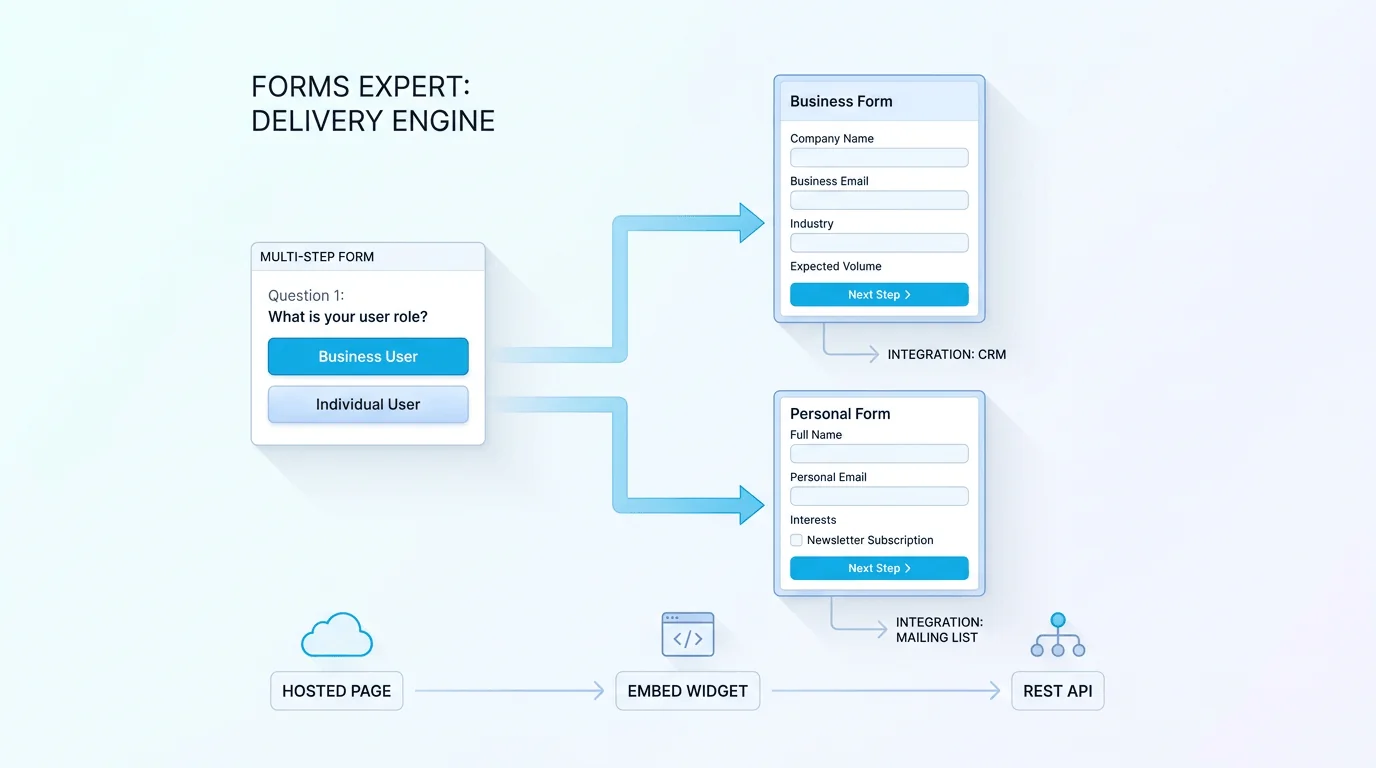
Conditional logic decides which fields a respondent sees based on what they have already answered. A rule watches a field, checks its value against a condition, and shows or hides a target field accordingly. Pick Yes on "Do you have an existing website?" and a URL field appears; pick No and it stays out of the way.
This is the difference between a form that feels personalized and one that feels like a tax return. Nobody should scroll past a "Company VAT number" field that does not apply to them. Because the logic lives in the form definition itself, it evaluates the same way no matter where the form is rendered — the hosted page or embed — so a respondent on a landing page and one inside an embedded widget get identical behavior.
Branching vs. Hiding Fields
It helps to separate two ideas that get lumped together as "branching form logic."
Hiding fields is the granular case: one rule toggles one field on a screen the respondent is already looking at. Branching is the larger pattern — using those same rules to reshape whole sections so that, in effect, a freelancer and an enterprise buyer walk different paths through the same form.
You build branching out of conditional rules; there is no separate "branch" object to learn. Tie show/hide conditions to a routing question early in the form ("What are you here to do?") and the fields downstream rearrange themselves around the answer. Keep the condition logic readable: a handful of clear rules beats a deeply nested web that nobody on your team can debug six months later.
Save-and-Continue Drafts
Long forms lose people to interruptions — a meeting, a dead battery, a question they need to go look up. Save-and-continue drafts address exactly that. A respondent's progress is preserved so they can return and finish later instead of starting over from a blank first step.
This matters most on the forms where the stakes are highest: job applications, detailed intake, multi-section onboarding. Pairing drafts with a multi-step layout is natural — each completed step is progress worth keeping. The feature does not replace good form hygiene (a form short enough to finish in one sitting rarely needs rescuing), but for genuinely long workflows it is the safety net that turns an abandoned tab into a completed submission.
Field Types and Where They Render
Forms Expert offers 35 field types — text and email inputs, choices, dates, ratings, file uploads, layout blocks, and more — which is plenty to build rich, branching, multi-step forms.
There is one architectural detail worth knowing. The 23 interactive field types and 3 layout field types are rendered UI: they need a place to draw themselves. So they live on a hosted page, an embed widget, or a both form. A form whose type is api is intentionally UI-less and rejects those field types with an HTTP 400, because there is no surface to render a date picker or a multi-step layout into. An api form is for free-form JSON intake — a backend posting structured data — not for the conditional, stepped experiences this guide is about. If you want steps and logic, publish to a hosted page or embed.
UX Guidance That Holds Up
A few principles separate a multi-step form that converts from one that frustrates.
Front-load the cheap questions: ask easy, low-commitment fields first, because once someone has answered two or three they are more likely to finish. Show a progress indicator while you are at it, since people tolerate length far better when they can see the end. Group steps by topic rather than by field count, so each screen feels like a coherent question set instead of an arbitrary slice.
- Hide aggressively. If a field applies to a minority of respondents, gate it behind a condition. The default view should be the shortest honest version of the form.
- Validate per step. Catching errors on the screen where they happen beats dumping a list of failures at the finish line.
- Keep branches shallow. Logic you can explain in a sentence is logic you can maintain.
None of this is specific to one tool, but all of it is achievable with steps, conditional logic, and drafts working together.
Putting It Together
Multi-step layout breaks the form into screens, conditional logic prunes what does not apply, and save-and-continue drafts catch the people who get pulled away. Used together, one form definition can serve very different respondents without showing anyone a field meant for someone else.
All three are part of the builder rather than premium add-ons, so the entry point is low; see the pricing page for where each plan's submission limits and analytics land. Build the shortest honest version of your form first, then add steps and logic only where the data tells you respondents are dropping off.
Frequently Asked Questions
It is a set of rules that show or hide fields based on what a respondent has already answered. Each rule watches a field, evaluates its value against a condition, and reveals or removes a target field accordingly. The practical effect is that a form adapts to each person: someone who answers no to a qualifying question never sees the follow-up fields it would have triggered. Because the logic is stored in the form definition rather than in page-specific code, it behaves identically whether the form is delivered as a hosted page or an embedded widget. This keeps forms short for the people who need fewer questions, which is one of the most reliable ways to lift completion rates on longer forms.