If you sell anything, a custom cake, a batch of t-shirts, a weekly produce box, an order form is how you take orders without a phone call or a messy email thread. A good one captures exactly what you need to fulfill the order and nothing more, so customers finish it and you don't chase missing details. This guide covers what an order form should include, the fields that matter, a five-step build, how to get orders out of a spreadsheet and into your workflow, and an honest answer to the question everyone asks: does it take payment?
What Is an Order Form, and What Should It Include
An order form is a form that collects what a customer wants to buy and the details you need to fulfill it: the product, any options, the quantity, and where it's going. Its job is to replace the back-and-forth of "what size? what color? what's your address?" with a single, structured submission you can act on. Done well, it turns an inquiry into a ready-to-fulfill order in one step.
The right contents depend on what you sell, but the shape is consistent. You need the order itself (the product, the variant, how many), you need to reach the customer (name, email or phone), and for physical goods you need a shipping or pickup detail. Everything else, gift notes, delivery dates, special instructions, is added only when your fulfillment actually uses it. The most common mistake is bloating an order form with fields that feel thorough but slow the customer down, and on an order form, friction translates directly into abandoned carts.
That last point is well documented. Baymard Institute's checkout and form research consistently finds that shorter, clearer forms convert better, and that every unnecessary field is a place to lose a sale. An order form is the last step between wanting to buy and buying, so the rule is ruthless: if a field doesn't help you fulfill or contact, it doesn't belong.
Order forms suit anyone who sells without a full storefront: a bakery taking custom cake orders, a maker running a pre-order, a restaurant taking catering bookings, a club selling merch, a farm shop with a weekly produce box. The common thread is a defined set of products and a need to capture orders cleanly, without building or paying for a whole ecommerce platform to do it.
The Fields Every Good Order Form Needs
Order form fields fall into three groups: the order details, the contact info, and the shipping or fulfillment details. The table lays out the usual ones, and you trim from there.
The order details are the heart of it. At minimum that's the product, but most real orders also need options (size, color, variant), a quantity, and often a free-text field for special instructions, which is where "no nuts, please" or "engrave a name on it" lives. Getting options and quantities right is what separates an order form from a generic contact form. The contact fields are a name and at least one way to reach the customer, an email for confirmation and a phone for anything time-sensitive. The shipping or fulfillment fields apply to physical goods: a delivery address, or a pickup-versus-delivery choice, and a delivery date if timing matters.
A usability note worth taking from Nielsen Norman Group's work on web form design: group related fields together and label them plainly, so the order section feels separate from the shipping section. A customer who can see the form's structure at a glance moves through it faster and makes fewer mistakes, which means fewer orders you have to correct later.
Two small build choices prevent most order errors. Make the fields you truly need required, so an order can't arrive without a shipping address or a quantity, but keep the optional ones optional so you're not forcing made-up answers. And use the right input for each field: a dropdown for size, a number for quantity, a checkbox for add-ons. Constraining inputs up front beats correcting typo'd free-text orders after the fact.
If your prices are fixed, it helps to show them on the form next to each option, so the customer sees the total taking shape as they choose. The form doesn't charge anything, but making the cost visible sets expectations and cuts down on surprised follow-ups when you send the payment request.
| Field | What it captures | Group |
|---|---|---|
| Product or item | What they're ordering | Order details |
| Options (size, color, variant) | The specific version | Order details |
| Quantity | How many | Order details |
| Special instructions | Custom notes or requests | Order details |
| Name | Who's ordering | Contact |
| Email or phone | Confirming and following up | Contact |
| Shipping address | Where it goes | Shipping |
| Delivery or pickup | How they want it fulfilled | Shipping |
How to Create an Order Form in 5 Steps
With the fields decided, building the form is quick. Five steps cover most order forms.
1. List your products and options. Decide what people can order and which choices each item has. This is the part that takes thought, since a clear option setup (a dropdown for size, a choice for color) prevents the ambiguous orders that cost you a follow-up message later.
2. Add quantity and instructions. Give each item a quantity field and add one open "special instructions" box for the requests you can't predict. Resist adding a separate field for every possible note; one good open box handles them.
3. Split a long order into steps. If you sell a lot of items or need detailed shipping info, break the form into a multi-step layout so it feels manageable rather than endless. If customers should be able to start and finish later, save-and-continue does that, and it's on the Starter plan and up rather than Free, so plan for it if resumable orders matter.
4. Set where orders go. Choose how you'll receive each order: the dashboard, your email, a team chat, or your own system. This is what keeps orders from getting lost, and the next section covers the options.
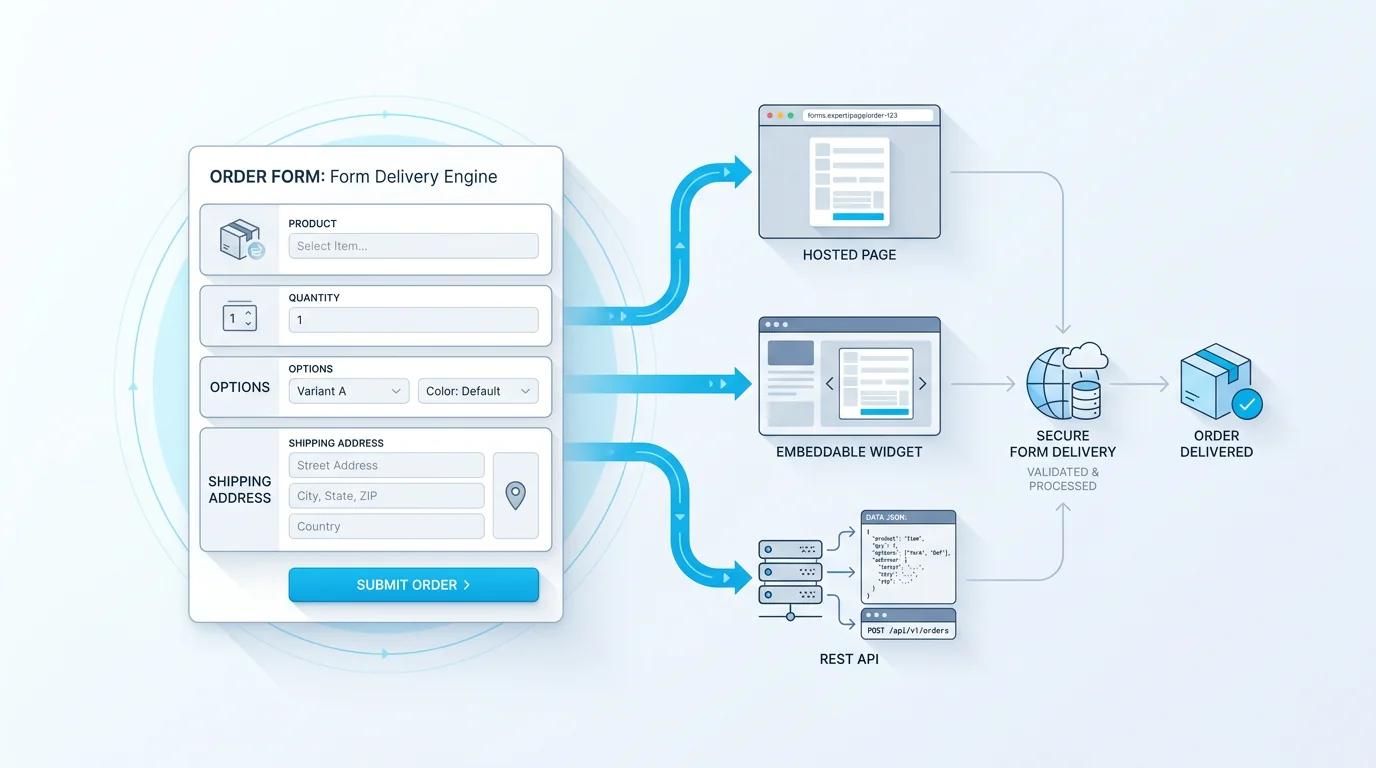
5. Publish it. Ship the order form as a hosted page you can link to, an embedded widget on your store or site, or both. In Forms Expert every published form is also a REST endpoint, so the same order form works as a link, an embed, and an API. Building, publishing, and collecting orders works on every plan, including Free.
A useful sixth habit: send an order confirmation. An automatic confirmation email reassures the customer that their order went through and gives them a record of what they ordered, which cuts down on "did my order go through?" messages and disputes later. It's the small touch that makes an order feel handled.
How to Take Orders Without a Spreadsheet
The point of an online order form is that orders arrive structured and routed, instead of as emails you copy into a spreadsheet by hand. Good form tools handle that delivery for you.
With Forms Expert, every order can be delivered several ways at once. Orders land in the dashboard by default, and you can also have each one sent to email, pushed to Telegram for a team that works in chat, or delivered to your own system through a signed webhook that retries if your endpoint is briefly down. If you run your own backend or store, the REST API lets you pull orders directly. So a new order can simultaneously create a dashboard record, ping your phone, and drop into your fulfillment system, with no manual copying.
This is the real reason a hosted order form beats an order form built in Excel or Google Forms. A spreadsheet can hold orders, but it can't collect them from customers, validate the fields, or route a new order anywhere automatically; you become the integration. A proper order form does that work, so the moment a customer hits submit, the order is already where it needs to be. The reading side has an honest tier note too: a basic results overview is on every plan, while the deeper per-field analytics are part of Pro.
There's a workflow upside beyond convenience. When orders route automatically, the gap between a customer hitting submit and you starting fulfillment shrinks to seconds, which matters most at busy times, a holiday rush or a product launch, when manual copying is exactly what falls behind. The form keeps up with the volume so you can spend your time on fulfillment, not data entry.
Order Forms and Payment: The Honest Version
Here's the question every order-form guide should answer plainly and most dodge: does the form take payment? For Forms Expert, the honest answer is no. The order form collects the order and the customer's details; it does not process payments or charge cards. It's the order-capture step, not a checkout.
That's not the limitation it sounds like, and pretending otherwise would be the real problem. The clean pattern is to take the order through the form and handle payment separately: send a payment link or an invoice after the order comes in, or place a checkout tool alongside the form for customers who pay upfront. For many small sellers, made-to-order bakers, custom makers, pre-orders, capturing the order first and invoicing once you've confirmed availability is actually the workflow they want, since charging before you've checked you can fulfill creates refunds and headaches.
The point is to be clear about the boundary. Forms Expert is excellent at capturing a complete, structured order and getting it to you instantly; it is not a payment processor, and you should pair it with one when you need to charge. Any tool that implies a form alone both takes the order and safely processes the card is glossing over a real distinction, and you'll feel the gap when a payment fails and there's no processor behind it.
In practice, the cleanest setups keep the two steps loosely joined. Capture the order, send an automatic confirmation, then follow with a payment request, a hosted invoice, a payment link, or a checkout you control. Customers are used to this from custom and made-to-order businesses, and it gives you a moment to confirm stock or details before money changes hands, which is often exactly when you want that pause. And if you do sell prepaid, that works too: route customers to your checkout from the confirmation rather than expecting the form to hold their card details. Either way, the form's job ends at a clean, complete order.
Anti-Spam on a Public Order Form
An order form is public by design, which means bots will find it. A few protections keep junk orders out without adding friction for real customers.
Forms Expert defends a public form with a hidden honeypot field that catches automated submissions, rate limiting that stops a flood of entries from one source, and an optional CAPTCHA for forms that attract more abuse. Together those handle the spam that would otherwise clutter your order list. They work quietly, so a genuine customer never notices them, which is the goal, since a CAPTCHA on every order is its own kind of friction.
One honest boundary to know: if your order form includes a file upload, those files are not virus-scanned. The anti-spam tools stop bots and floods, but they don't inspect the contents of an uploaded file for malware, so treat attachments from the public with normal caution. It's a different job from spam filtering, and knowing where that line sits keeps you from assuming a protection that isn't there. For most order forms, which don't take uploads at all, the honeypot, rate limiting, and CAPTCHA are all you need.
Turn the CAPTCHA on only if you actually see abuse, not by default. Every extra hoop costs you a few real orders, so the right order of operations is to launch with the invisible defenses (honeypot and rate limiting), watch for junk, and add the CAPTCHA if and when bots become a real problem. Protect the form, but not at the expense of the customers you want.
Start From a Free Product Order Form Template
You don't have to build from a blank page. Forms Expert has a ready product order form template with the standard fields, products, options, quantity, contact, shipping, already laid out, which you edit to match what you actually sell. The wider order template category has related starting points if a different format fits.
Templates are free to use on every plan. Order volume depends on your tier, so pick the plan that matches how much you sell, but starting from a template isn't gated, and there's no "unlimited" sleight of hand, just clear per-tier limits you can plan around. Edit the template, set your products and options, decide where orders should go, and publish as a link or an embed.
The recap is short because creating an order form is short: list your products and options, keep the contact and shipping fields tight, route orders so they don't get lost, and pair a payment tool if you charge upfront. Once orders are flowing, a feedback form after delivery closes the loop on how the experience went. For now, start from the template or the home page and take your first online order today.
And treat the first version as a starting point. Launch with a lean order form, watch which fields people stumble on or skip, and refine from real orders. An order form you tune from actual sales beats one you over-build before anyone has placed an order. The best order form is the one you actually ship and then improve, not the perfect one still in your head.
Frequently Asked Questions
Three groups of fields. The order details: the product, any options like size or color, the quantity, and an open box for special instructions. The contact info: a name and at least one way to reach the customer, usually email plus phone for anything time-sensitive. And for physical goods, the fulfillment details: a shipping address or a pickup-versus-delivery choice, and a delivery date if timing matters. Keep it to what you need to fulfill and contact, since every extra field lowers completion. If a question's answer won't help you ship the order or reach the buyer, leave it off.