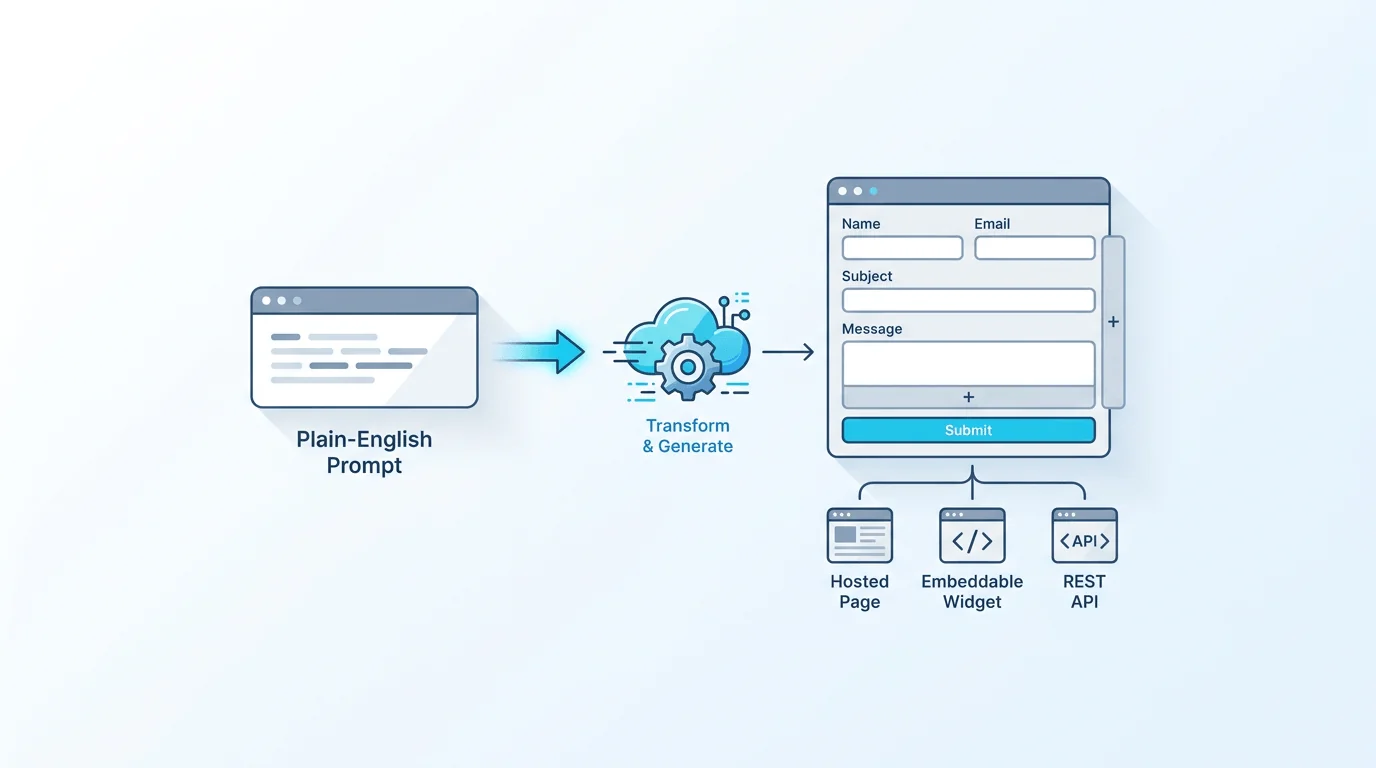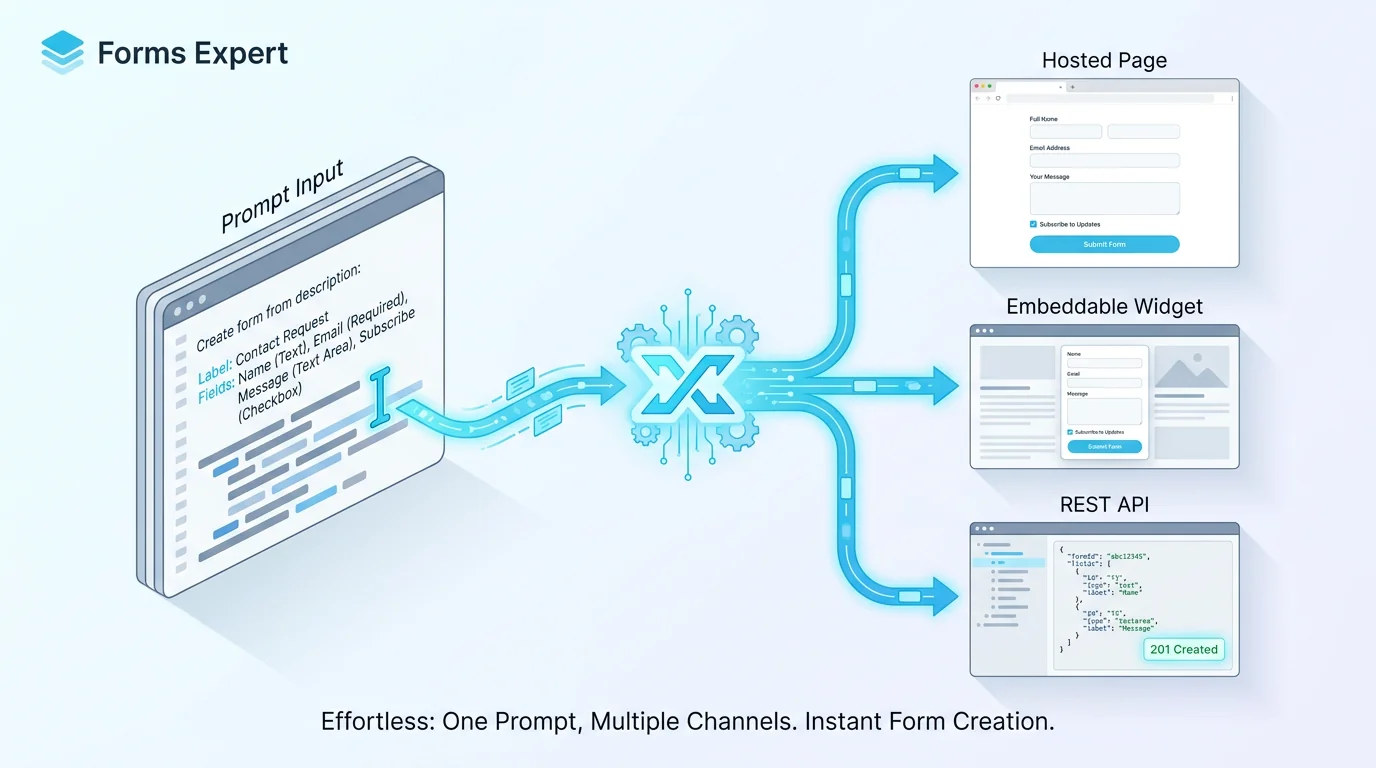
Creating a form with AI is simple once you know the steps: you describe the form you want in plain English, the AI generates a complete draft, and you review and edit it before publishing. No dragging fields one at a time, no blank-page paralysis. This is a hands-on, step-by-step guide to doing exactly that, the five steps, a copyable prompt you can adapt, what AI reliably gets right (and what you should still check), and how to publish the result. If you want the conceptual background on how AI form builders work, our AI form builder explainer covers it; this article is the practical how-to.
What It Means to Create a Form With AI
Creating a form with AI means generating a form from a written description instead of building it field by field. You type a prompt, something like "a contact form with name, email, and a message", and a language model turns that into a structured, editable form: the right field types, labels, required markers, and basic validation, ready for you to refine.
The important thing to understand before you start is that AI gives you a draft, not a finished product. The generated form is a real, editable form, you then review it, make changes, and publish, the same way you'd edit a first draft of anything. That's not a limitation to work around; it's the intended flow. The AI does the fast, tedious part (laying out the obvious fields in a sensible order) and you do the quick, judgement part (checking the fields are right and the wording fits). With that expectation set, the five steps below take only a few minutes end to end.
It's also worth being clear about what you're not giving up. Creating with AI doesn't lock you into the AI's choices, the moment the draft appears, it's a normal form you have full control over. So there's no risk in trying it: if the generated form isn't right, you edit it or regenerate with a better prompt, exactly as you'd iterate on any first draft. That low-stakes quality is part of why starting with AI is worth it even when you know exactly what you want.
And if AI generation isn't available to you (it's a paid feature in most capable tools, including Forms Expert), the same form can still be built by hand, AI just changes the starting point, not what's ultimately possible.
How to Create a Form With AI in 5 Steps
The process is the same across most AI form tools.
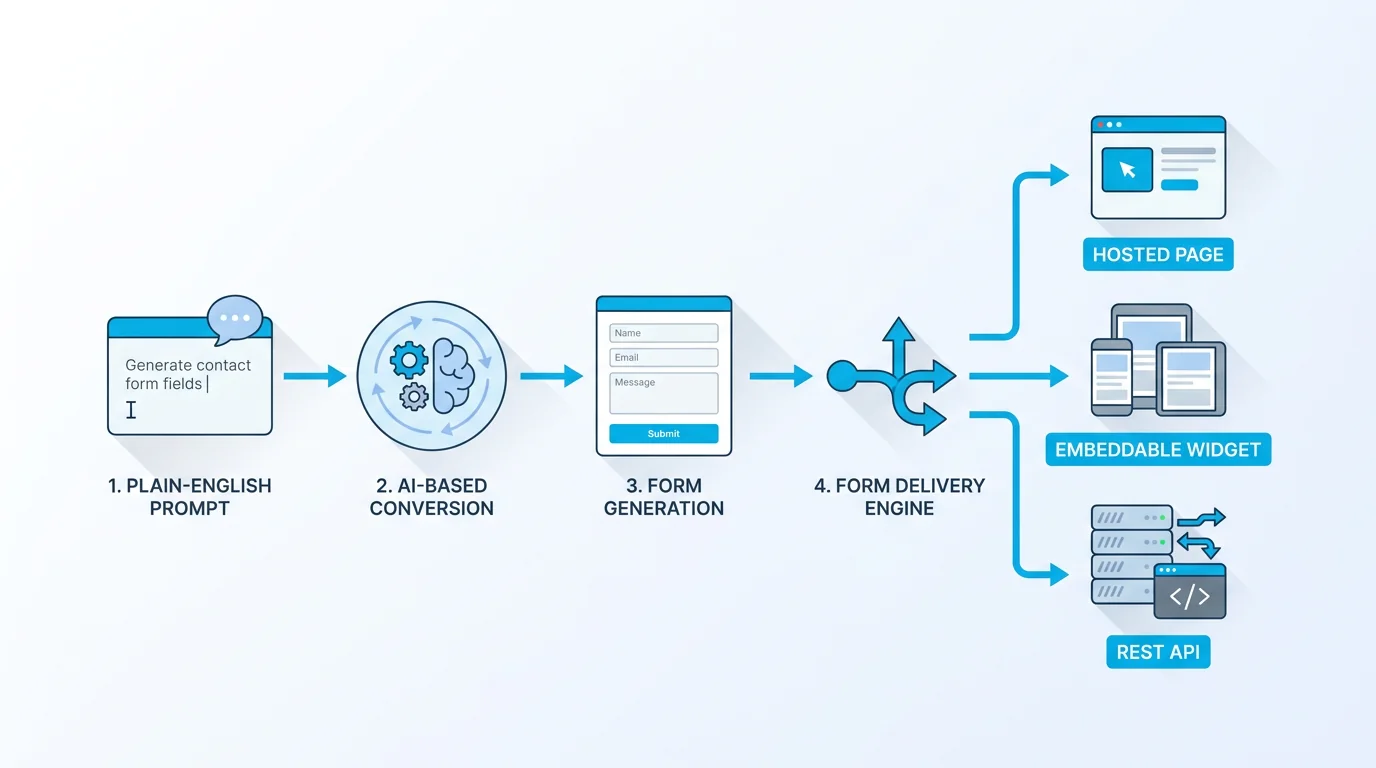
Step 1: Open the AI generator. In your form builder, find the option to create a form with AI (often labelled "Generate with AI" or similar) and open it. Step 2: Write your prompt. Describe the form in plain English, its purpose and the fields you want. The more specific you are, the closer the draft will be to done; the next section has examples. Step 3: Set any options. Some tools let you nudge the output, the rough number of fields, whether it's single-page or multi-step, the tone. Set these if offered, or leave the defaults. Step 4: Generate. Submit the prompt and let the AI produce the draft. This usually takes a few seconds, and you'll get a complete form with fields, labels, required flags, and validation. Step 5: Review and edit. Read through the generated form, fix anything the AI got wrong or missed, adjust wording, add or remove fields, and then publish. This step is short but never skip it.
A tip that improves every run: have your field list ready before you open the generator. If you've already jotted down what you need to collect, step 2 becomes a quick transcription rather than thinking out loud, and the draft comes back much closer to final. Conversely, if you're not sure what to ask, generating a first pass and editing it can actually help you discover the fields you need, the AI's guesses become a starting checklist. Either way, the generate-and-review loop is fast enough to run more than once.
That's the whole loop: open, prompt, options, generate, review. The two steps that decide the quality of the result are step 2 (the prompt) and step 5 (the edit), which the rest of this guide focuses on.
Writing the Prompt: Examples That Create Better Forms
A vague prompt produces a generic form; a specific one produces a draft you barely touch. The fix is to treat the prompt like a short brief: state the form's purpose, list the fields you want, and note types and required status where they matter. Here's a copyable example you can adapt:
Notice what makes this work. It names the purpose (a coffee shop feedback form), lists each field, specifies types where they matter (a rating, a yes/no, long versus short text), marks required fields, and sets the format and tone. Compare that to a weak prompt, "make a feedback form", which leaves the AI to guess everything and produces something generic you'll heavily rewrite.
A few rules of thumb: be specific about purpose and audience; list fields explicitly rather than hoping the AI infers them; mention a field type only when it matters (say "dropdown" or "date" where the default might be wrong); and note required versus optional. If you want a multi-step form, say so and describe the steps. There's usually a length limit on prompts (in Forms Expert, up to 2,000 characters), which is plenty for a detailed brief, just be structured rather than rambling. For a deeper look at prompt-writing and a full worked example, see generating a form from a prompt.
To make the before-and-after concrete: the weak prompt make a feedback form might return a generic three-field form (name, email, comments) you'd then rework, missing the rating, the order question, and the contact opt-in. The detailed prompt above returns those fields, with the rating as an actual rating input and the opt-in as a yes/no, in the order you specified. Same tool, same few seconds, very different starting point, and the only difference is the twenty extra seconds you spent describing what you actually wanted. That trade, a little more prompt for a lot less editing, is almost always worth making.
What AI Gets Right, and What You Should Still Edit
Knowing what to check in step 5 makes the review fast. AI form generation reliably gets the basics right: it chooses sensible field types (an email field for an email, a date picker for a date), marks the obvious required fields, orders fields logically, adds basic validation, and produces clean labels. For a straightforward form, the draft is often 90 percent there.
What needs your eyes is the judgement the AI can't make for you. Field choice: it may add fields you don't need or miss one you do, trim and add. Wording: labels and helper text should match your brand and be unambiguous; tweak anything generic. Validation and required flags: double-check that the right fields are required and that validation matches your real rules. Logic and structure: the AI won't know your conditional rules, so add conditional logic or multi-step structure where the form should adapt or break into steps. And usability: make sure the form asks only what you need, in a sensible order, the basics of good form design, as covered by Nielsen Norman Group. None of this takes long, but it's the difference between a generic AI draft and a form that's genuinely yours.
One efficient way to run the review: read the generated form as if you were the person filling it in. Does every field make sense? Is anything missing that you'd want to ask? Is anything there that you don't actually need? Filling it in mentally surfaces problems faster than auditing field by field, and it keeps the focus on the respondent's experience rather than just the structure. Two minutes of that perspective usually catches everything worth fixing.
Create a Form With AI vs From a Template vs From Scratch
AI generation is one of three ways to start a form, and the right one depends on your situation.
| Starting point | Best when | What you do |
|---|---|---|
| Create with AI | You can describe the form but don't want to place fields by hand | Write a prompt, then review and edit the draft |
| From a template | Your form is a common type someone has already designed well | Pick a template, then customise it |
| From scratch | You need exact control, or the form is unusual | Build it field by field in the editor |
In short: use AI when you have a clear idea and want to skip the manual layout; use a template when your form matches a well-designed common type; and build from scratch when you need precise control or the form is unusual enough that describing it would take longer than building it. These aren't exclusive, a common pattern is to generate with AI and then refine in the editor, which combines the speed of AI with the control of building by hand. The point of creating with AI isn't that it replaces the other two; it's that it removes the blank page and the tedium of placing obvious fields, getting you to something to edit in seconds.
If you're deciding for a team, there's a people angle too: AI generation lowers the barrier for non-technical colleagues to produce a solid first draft, which they can then hand to someone for review, whereas building from scratch assumes comfort with a form editor. So AI isn't just faster; it widens who can confidently start a form, which matters more than raw speed in many organisations.
Publish the Form You Created With AI
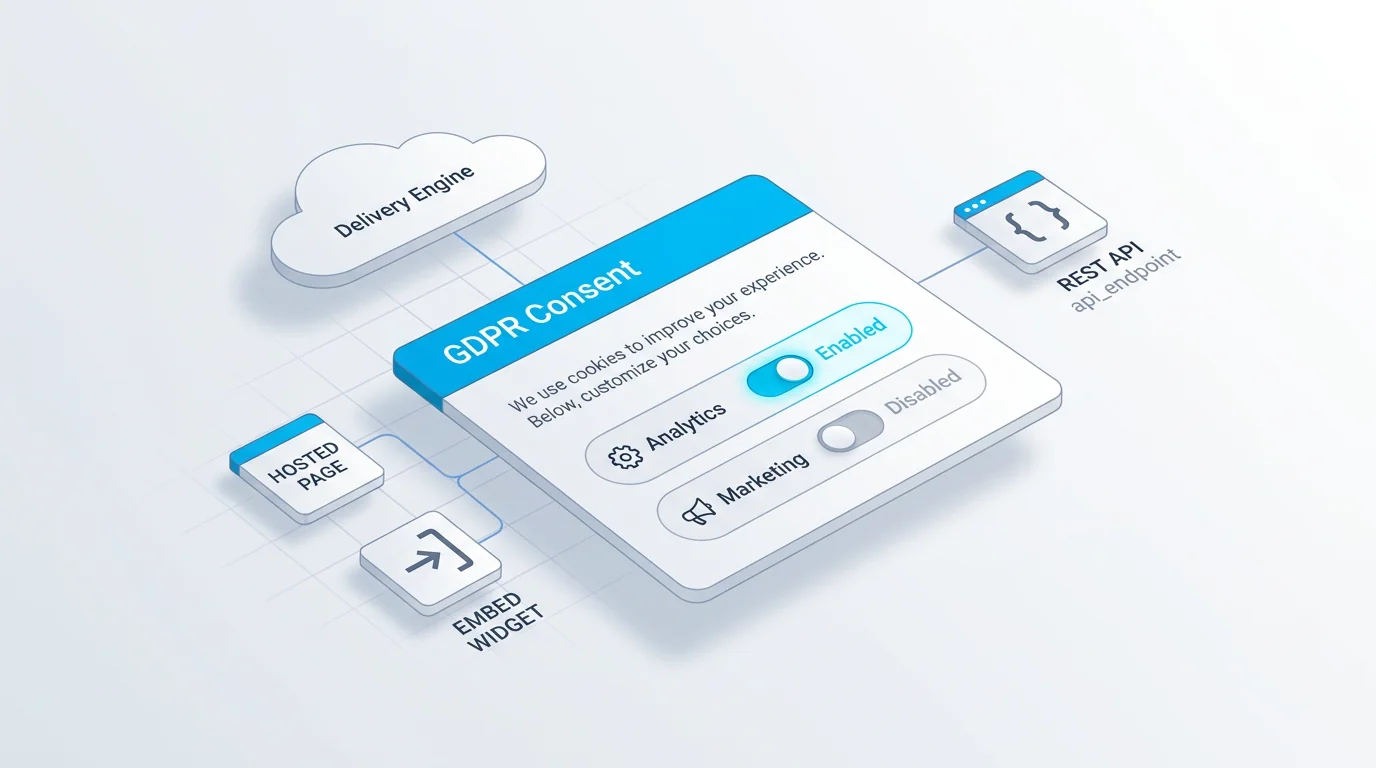
Once you've reviewed and edited the draft, publishing is the same as for any form, the AI only affects how the form was created, not how it's shared. Depending on your tool, you can publish the form as a hosted page with its own link, embed it on your website, or expose it via an API for your own code to use. A good builder lets one form do all three at once, the one form, three channels model, so the form you generated can be a standalone link, a widget on your site, and an endpoint without rebuilding it.
The practical advice: preview the published form on both desktop and mobile before sharing it widely, generated or not, every form should be checked in the context people will actually fill it in. After that, collecting responses works exactly as it would for a hand-built form. The AI saved you time at the start; everything downstream, publishing, embedding, collecting, and analysing, is unchanged.
This is a useful reminder when comparing AI form tools: the AI is only the front door. A tool that generates a lovely draft but then traps it in a clumsy hosted page, or can't embed cleanly, or has no API, undoes the time the AI saved. So when you pick a tool to create forms with AI, weigh the whole package, generation plus how the finished form is delivered, not just the prompt-to-draft step.
Create Your Form With AI in Forms Expert
To create a form with AI in Forms Expert: on a paid plan, open the AI generator, write your prompt (up to 2,000 characters), and the AI, powered by Anthropic's Claude, produces a complete editable draft in seconds, fields, labels, required flags, validation, and optional multi-step. You then review and edit it (in the builder or with plain-language AI Edit), add logic and steps, and publish it as a hosted page, an embed, or an API.
The honest part, the same as for any capable AI generation: this is a paid-plan feature. AI generation and editing are not on the Free plan, which is a full manual builder but with no AI. On paid plans the AI is usage-limited (not billed per credit): the daily allowance is 3 on Starter (from $9 a month), 10 on Pro, and 30 on Business, with monthly limits of 30, 200, and unlimited respectively. So if you want to create a form with AI specifically, that's a paid feature from $9 a month; if you'd rather not pay for AI, you can still build the same form by hand on the Free plan, just without the prompt-to-draft shortcut. See the AI form builder page for details, or start from the home page.
Frequently Asked Questions
In five steps. Open the AI generator in your form builder; write a prompt describing the form's purpose and the fields you want, in plain English; set any options the tool offers (number of fields, single-page or multi-step, tone); generate the draft, which takes a few seconds and produces a complete form with fields, labels, required flags, and validation; then review and edit the result before publishing. The two steps that most affect quality are the prompt (be specific, list the fields, note types and required status) and the review (check field choice, wording, validation, and add any logic the AI couldn't infer). The whole process usually takes only a few minutes.