Long forms ask a lot in one sitting. An application, a detailed intake, a multi-section registration, these often can't be finished in a single uninterrupted go, and when someone is forced to, many simply give up partway and never return. A save and continue form solves this by letting respondents save their progress and come back later to finish, instead of losing everything when they close the tab. This is a focused guide to that capability: what it is, why it matters for abandonment on long forms, how saving and resuming actually works, how it differs from a partial submission, and how to add it, with an honest account of the limits.
If your forms are short, you can skip this one: it's specifically for the long, interruptible forms where a saved draft is the difference between a finished application and a lost one.
What Is a Save and Continue Form
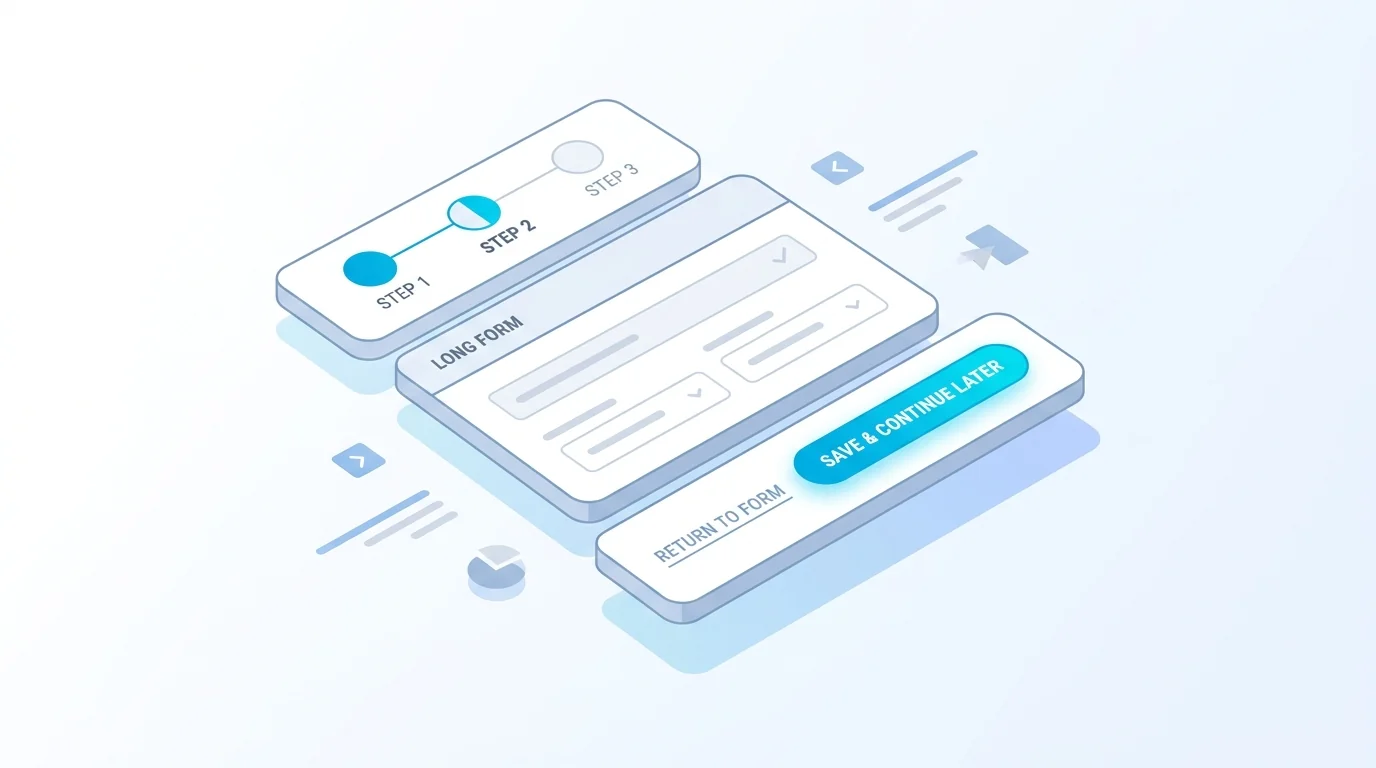
A save and continue form (often called save and continue later) is a form that lets a respondent save their progress partway through and return later to complete it, usually via a link, rather than having to finish in one sitting. Their answers so far are stored, and when they come back, the form is repopulated where they left off.
The point is to remove the all-or-nothing pressure of a long form. Without it, someone who has to stop, to find a document, take a call, or simply think, loses everything and often doesn't bother starting again. With it, they save, deal with whatever interrupted them, and pick up where they were. It's a capability that matters most on exactly the forms that are hardest to finish in one go: applications, onboarding, intake, and any form long enough that an interruption is likely. The rest of this guide covers why that reduces abandonment, how it works under the hood, and how to set it up.
It helps to be clear about what save and continue is not. It isn't the same as autosave in a document, where every keystroke is persisted silently; it's a deliberate save action the respondent takes, producing a draft they can return to. It's also not a way for you to harvest half-finished responses, the data stays the respondent's draft until they choose to submit. Keeping those boundaries clear avoids both technical confusion and the privacy missteps that come from treating an unfinished draft as a submission.
The terminology varies by tool, save and continue, save and resume, save for later, save progress, but the idea is the same: a respondent-controlled pause-and-resume for a form that's too long to finish in one go. Throughout this guide, save and continue means exactly that, and where a specific tool's behaviour differs (especially on how long a draft lasts), it's worth checking the details rather than assuming.
Why Save and Continue Matters: Form Abandonment
Form abandonment is when someone starts a form and leaves before submitting, and it rises sharply with length and effort. Rather than quote an invented percentage, here's the honest mechanism: every additional field, step, and moment of required effort is a chance for someone to stop, and the longer the form, the more chances there are. When stopping means losing all their progress, a single interruption can cost you the whole submission.
Save and continue attacks the most avoidable cause of abandonment, the interruption. A respondent who needs to find a reference number, check with someone, or upload a document they don't have to hand can save and return, instead of abandoning. The UX research is clear on the principle: long forms should reduce the cost of interaction and let people recover from interruptions, as Nielsen Norman Group covers in its form design guidance, and government services structure lengthy forms into small, manageable pages so progress is easy to make and to recover, as set out in the GOV.UK Service Manual. The takeaway isn't a magic number; it's that for any form long enough to be interrupted, the ability to save progress directly protects completions you would otherwise lose.
It's worth being concrete about when this bites. Picture a job application that asks for employment history, references, and a document upload. A candidate starts at lunch, realises they need a former manager's email, and closes the tab meaning to come back. Without save and continue, returning means starting over, and many won't. With it, they reopen their draft that evening and finish. The longer and more document-dependent the form, the more of these everyday interruptions stand between a starter and a completed submission, and the more a save option recovers.
How a Save and Continue Form Works
Mechanically, save and continue has a few moving parts. When a respondent saves, the form stores what they've entered so far, their answers, and usually the current step or last field, as a draft. To let them get back to it, the form issues a return mechanism: commonly a unique link (backed by a token) and/or a cookie in their browser, so reopening the form restores the draft. Some implementations email that return link to the respondent, which is why saving often asks for an email address, both to send the link and to identify the draft.
Two details matter for expectations. First, drafts don't last forever: there's an expiry window after which an unfinished draft is cleared, so save and continue is for finishing soon, not months later. Second, what counts as finished: a saved draft is not a submission, you only receive the response when the respondent returns and actually submits. Until then it's their in-progress draft, not your data. Understanding both, the expiry and the draft-versus-submission distinction, is the key to using the feature well and setting honest expectations with respondents.
It's also worth knowing how the return link relates to privacy. Because anyone with the link can open the draft, the link is effectively a key to the partially-entered data, so it should be treated like one: sent to the respondent's own email, not shared, and invalidated once the form is submitted. Tools that auto-delete the draft on submission and expire it after a set window are limiting how long that key stays useful, which is good practice. If a form collects sensitive information, this link-as-key behaviour is something to be deliberate about rather than an afterthought.
Partial Submissions vs Save and Continue
These two terms get used interchangeably, but they're different ideas. A partial submission is incomplete form data captured by the form owner, often automatically, when someone abandons a form; the owner gets whatever was entered so far, even though the respondent never submitted. Save and continue is respondent-driven: the person deliberately saves their own progress to finish later. One is mainly a lead-recovery tool for the owner; the other is a convenience for the respondent. They can overlap, but the intent and the data flow differ.
| Aspect | Partial submission | Save and continue later |
|---|---|---|
| Driven by | The form owner (often auto-captured) | The respondent, deliberately |
| What's kept | Whatever was entered before abandoning | The respondent's draft, to resume |
| How it resumes | Owner may follow up; respondent may not return | Respondent returns via a saved link |
| Main purpose | Recovering leads from abandoned forms | Letting people finish a long form later |
Which you want depends on your goal. If you're trying to recover leads who drop off, partial submissions (capturing what they entered) is the relevant idea, though it carries its own consent considerations, since you're storing data someone didn't submit. If you're trying to help genuine applicants finish a long form, save and continue is the respondent-friendly choice. This guide is about the latter, but it's worth knowing the distinction so you ask for the right feature.
There's also a compliance angle worth flagging. Because a partial submission stores data the person never chose to submit, it can raise consent and data-minimisation questions under regimes like GDPR: you're keeping personal data from someone who didn't complete the action. Save and continue is cleaner on this front, since the respondent deliberately saves their own draft and controls whether to come back. If you're in a regulated context, that difference is worth weighing before enabling automatic partial-submission capture.
Best Practices for Save and Continue Forms
A few practices make save and continue genuinely useful rather than confusing.
Make the save option visible up front. People decide whether to start a long form partly on whether they can pause it. Showing a Save and continue later option early reassures them it's safe to begin. Set expectations about expiry. Tell respondents how long their draft will be kept and, if you email a return link, that they should use it within that window, surprise expiry is worse than no save feature at all. Be clear about what saving needs. If saving requires an email (to send the return link), say so, and explain it's used to let them resume. Combine it with multi-step. Save and continue and multi-step forms are natural partners: long forms benefit from both being broken into steps and being resumable, so a saved draft returns the person to the right step. Confirm the save. When someone saves, show a clear confirmation (and the return link), so they trust their progress is safe.
Accessibility matters here too: the W3C WAI multi-page forms guidance warns against time limits that could cut people off, an expiry window should be generous and clearly communicated, never a silent cutoff mid-task.
A couple more worth doing. Don't force a save to finish, make it optional, since most people will complete in one go and only some need to pause; a mandatory save step adds friction for everyone. And test the resume flow yourself, save a draft, close the browser, and return via the link, because a save feature that doesn't reliably restore the right state is worse than none: it promises safety and then loses work. The whole value is trust that progress is genuinely safe, so the resume path has to be solid.
One placement tip: put the save control where the effort is. On a multi-step form, a save option at each step boundary matches where people naturally pause; on a single long page, keep it visible as they scroll. The goal is that the moment someone feels the urge to stop, the save option is right there, not buried, so a pause becomes a save rather than an abandonment.
How to Add Save and Continue Later in Forms Expert
Forms Expert offers save and continue later as a capability you can enable on a form, here's exactly what it does, stated precisely so you know what you're getting. When enabled, the form shows a Save and continue later option. Saving stores the respondent's data, their current step, and last field as a draft kept for 7 days, resumable via a token-based return link (and a cookie). You can optionally require an email at save time, used to send the return link. When the respondent comes back and submits, the draft is converted to a real submission and auto-deleted, drafts don't pile up, and unfinished ones are cleared after the 7-day window.
Because of the 7-day window, the feature is designed for finishing soon after an interruption, not for saving a form for weeks. That's the honest framing: it protects the common case (someone gets interrupted and comes back the same day or that week) rather than promising indefinite storage. It pairs naturally with the rest of the long-form toolkit, multi-step forms to break the form up, file uploads for the documents a long application needs, and conditional logic to keep it relevant, and it fits the prime use cases of registration and intake forms where applications are genuinely long. If your forms are short enough to finish in one go, you don't need it; if they're not, it's the difference between a saved draft and a lost applicant. Start from the home page to set it up.
One last honest note on fit: save and continue is a targeted feature, not a headline one. It quietly protects completions on your longest forms and does nothing for your short ones, which is exactly as it should be. Enable it where a form is genuinely long or document-dependent, communicate the 7-day window, and leave it off elsewhere, that's the whole job, done well.
Frequently Asked Questions
A save and continue later form is a form that lets a respondent save their progress partway through and return later to finish it, usually via a link, instead of having to complete it in one sitting. Their answers so far are stored as a draft, and when they come back, the form is repopulated where they left off. The purpose is to remove the all-or-nothing pressure of a long form: someone who has to stop to find a document or take a call can save and resume rather than lose everything. It's most valuable on long forms, applications, onboarding, and detailed intake, where an interruption is likely and abandonment is costly.