The short version
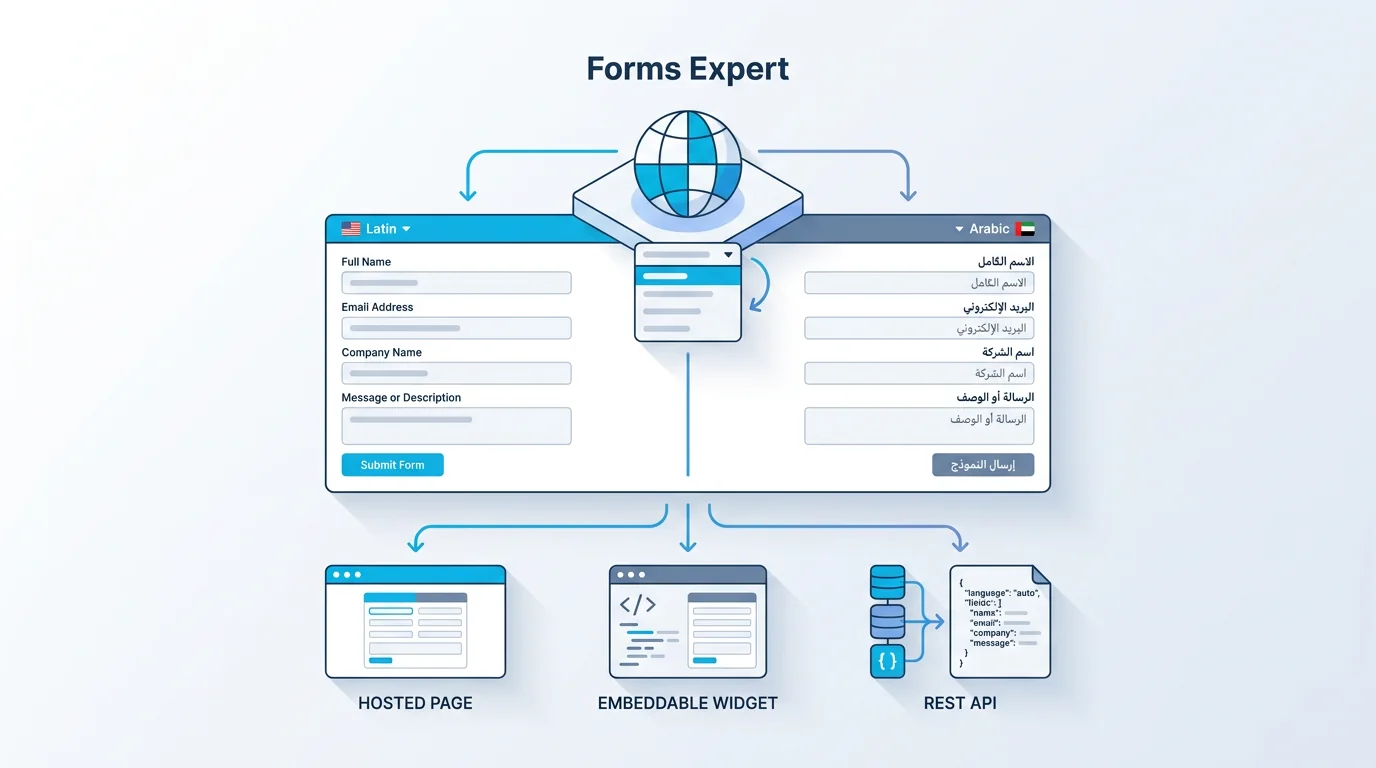
- A multilingual form is one definition published in several languages, with a switcher the respondent controls.
- There are four practical ways to build one; the DIY Google Forms route is the most limited.
- UTF-8 encoding and right-to-left (RTL) handling are the pitfalls that quietly break translated forms.
- Forms Expert can translate a form into 30 languages with DeepL.
A multilingual form is one form your respondents can read and complete in their own language, with a switcher that lets them choose. Same questions, same logic, same results table, just rendered in Spanish, Arabic, or Japanese depending on who shows up. Simple in theory. Then you try to build one and find there are four different ways to do it, each with a catch. You can duplicate the form once per language and maintain five copies by hand, lean on a WordPress plugin, paste your fields through Google Translate, or use a tool that translates and serves the languages for you. This guide covers all four, walks the most-searched DIY route (translating a Google Form), and stays honest about the parts that quietly break: character encoding, right-to-left scripts, and dates that read differently from one country to the next.
What Is a Multilingual Form
A multilingual form is a single form published in more than one language, where the labels, help text, answer options, and buttons all appear in the respondent's language while the form underneath stays identical. One definition, several presentations. Someone in Berlin sees German, someone in São Paulo sees Portuguese, and both sets of answers land in the same place for you to read.
That shared results table is what separates a real multilingual form from a pile of look-alike forms. Build five unrelated forms, one per language, and you also get five response tables, five sets of analytics, and five things to fix every time a single question changes. Keep the structure unified instead and the math gets a lot kinder: edit a field once, re-check its translations, and every submission still flows into one dataset no matter which language it came from. You analyze the results as one population, not as five spreadsheets you have to stitch together by hand.
Here's a distinction people trip over constantly. Translating the form is not the same as translating your website, and neither is the same as the language your admin dashboard runs in. Your site can sit in English while the form embedded on it offers six languages, and your back office can stay in whatever you and your team read. So when someone asks for a multilingual form, it's worth asking back: do they mean the public questions, the confirmation email, the validation messages, or all of it? Almost always they mean the questions and buttons the respondent sees. That's where most of the effort goes, and it's the part this guide focuses on.
Ways to Build a Multilingual Form
There are four common ways to build a multilingual form, and they run from free-but-tedious to paid-but-painless. The honest trade-offs first, then the detail.
Duplicating forms is the route that needs the least thinking and the most repetition. You rebuild the whole form for each language, translate the strings as you go, and link the versions together somehow (a menu, separate URLs). It works fine for one or two languages on a form you'll rarely touch. The moment you're maintaining four copies and someone asks to add a question, you feel the cost: that edit now happens four times, and miss one and that language quietly drifts out of sync with the rest.
If your site already runs on WordPress, a multilingual plugin like WPML or Polylang can translate form strings alongside the rest of your content. Sensible if you're committed to that stack. Less sensible if you aren't, because you inherit the setup overhead, the plugin-conflict roulette, and a translation workflow bolted to your CMS rather than to the form itself. It also doesn't help at all if your form lives somewhere other than WordPress.
The copy-paste Google Translate route is the fast, rough-draft option. You run each label through Google Translate and paste the result into a duplicated field. Good enough for an internal poll. Risky for anything customer-facing, because machine output dropped straight into a form goes out unreviewed, and a mistranslated consent line or a garbled payment label is a real problem, not a typo. There's also no switcher, so you're back to managing separate forms anyway.
Built-in translation is when the form tool does the work. You write the form once, the tool machine-translates it into the languages you pick, you edit anything that reads wrong, and it serves each language behind a built-in form translation switcher. Least ongoing effort, cleanest result, single response table. The catch is that this usually sits on a paid plan, which is the trade you're making for not hand-maintaining copies forever.
| Method | How it works | Best for | Drawback |
|---|---|---|---|
| Duplicate forms | Rebuild the form once per language, link them manually | One or two languages, rarely edited | Every edit repeated N times; split results |
| WordPress plugin | A plugin (WPML, Polylang) translates form strings | Sites already on WordPress | Setup overhead; tied to the CMS; conflicts |
| Copy-paste Google Translate | Translate strings by hand, paste into new fields | A quick, internal rough draft | Unreviewed errors; no switcher; manual upkeep |
| Built-in translation | The tool translates and serves languages with a switcher | Ongoing or customer-facing forms | Usually a paid plan |
How to Translate a Google Form
This is the single most-searched version of the question, so let's answer it straight. Google Forms doesn't have a built-in button that translates a form and hands respondents a live language switcher. So can you translate a Google Form? Sort of, with workarounds, and it helps to know their limits before you commit to one.
The manual route is the duplicate-and-translate one. Make a copy of the form, then go field by field translating the title, the questions, the descriptions, and the answer options into the target language. Say you want to translate a Google Form to Spanish: you'd retype each string in Spanish, or paste it in from Google Translate, then publish that copy as a separate form and point Spanish-speaking respondents at its link. Repeat for every language you need. It's the same duplicate-forms pattern from the previous section, just living inside Google Forms, with the same upkeep tax every time a question changes.
The browser route leans on the respondent's own tools instead of yours. Chrome and most browsers can auto-translate a page, so a respondent can right-click and pick Translate, or run the form's URL through Google Translate. This needs nothing from you, which is the appeal, but you don't control the result: translation quality varies, it can mangle option labels, it sometimes breaks the layout, and plenty of people never turn it on. Treat it as a fallback, not a feature you can rely on.
What you don't get from Google Forms either way is one unified form with a proper switcher and a single response sheet across languages. You get either several separate forms or a respondent-side auto-translation you can't see or fix. For a quick internal survey that's usually fine. For anything that represents your brand or collects sensitive answers, the gaps start to matter, and that's the point where people go looking for a tool that treats translation as a first-class part of the form rather than an afterthought.
Machine vs Manual Translation for Forms
Every route above eventually forces the same decision: do you trust machine translation, or do you write the translations by hand? The honest answer is that you want both, in that order.
Machine translation (DeepL, Google Translate, and the rest) is genuinely good now, and for the bulk of a form, the plain field labels, the help text, the generic options, it gets you most of the way in seconds. Starting from scratch in six languages by hand is a waste of time when a machine can draft the whole thing and you can correct it.
But forms have a handful of strings where most of the way isn't good enough. Consent and legal text has to say exactly the right thing in every language, and a machine doesn't know your jurisdiction or your intent. Answer options sometimes carry meaning a literal translation loses, like a satisfaction scale, a job title, or a regional term that has no clean equivalent. Anything with a number, a currency, or a date needs a human eye for local convention. And short button text like "Submit" or "Next" occasionally comes back oddly formal, or just wrong, in a way that's obvious to a native speaker and invisible to you.
So the workflow that actually holds up is simple to say: machine-translate first to get a complete draft, then have a human (ideally a native speaker) review the labels respondents will read most and the strings where a mistake costs you something. If you're running a multi-language survey where wording shifts the results, that review isn't optional, because a leading or confusing question in translation quietly biases everything you collect from that language group. Machines draft. People sign off. Skip the second step only on throwaway forms where nobody important is reading the answers.
The Hard Parts of Multilingual Forms
Translation is the obvious work. The pitfalls below are the ones that surprise people, and they're where a multilingual form goes from translated to actually working.
Encoding is the classic one. If any layer in the chain, the page, the form handler, the database, the export, isn't using UTF-8, your accented French and your Japanese and your emoji turn into garbage somewhere along the way. The fix is boring and absolute: use UTF-8 everywhere, declare it in your page, and store it that way end to end. The W3C's guidance on handling form data in UTF-8 is the reference worth bookmarking, because encoding bugs are miserable to track down after the data is already corrupted.
Right-to-left languages are the pitfall people forget until an Arabic-speaking respondent sends a screenshot. Arabic, Hebrew, Persian, and Urdu read right to left, and a form laid out for English doesn't just need translated words, it needs its direction flipped: labels on the right, inputs aligned correctly, the whole flow mirrored. That comes down to setting the page direction and language attributes, which the W3C covers in its notes on language and direction declarations. Translate the words without handling direction and the form reads, technically, but it feels broken to the very people it's meant for.
Then there's locale formatting, the quiet one. 03/04/2026 is March 4th to an American and the 3rd of April to almost everyone else. Decimal separators flip between commas and periods. Currency symbols sit on different sides of the number. None of this is translation, it's localization, and it's governed by per-locale data like the Unicode CLDR that powers date and number formatting across the web. For a form, the safe moves are to localize formats per language where you can, and to remove ambiguity where you can't: an ISO date, a clearly labeled currency, an example next to the field. Get this wrong and you don't get garbled text, you get clean-looking data that's silently incorrect, which is the worse failure because nobody notices until it matters.
| Pitfall | What breaks | How to handle it |
|---|---|---|
| Character encoding | Accented and non-Latin characters show as garbled boxes | Use and store UTF-8 end to end; declare it in the page |
| Right-to-left scripts | Arabic and Hebrew misalign; layout reads backwards | Set the direction and lang attributes; test the layout |
| Locale formats | Dates, numbers, and currency are misread (03/04 differs) | Localize formats per language; use ISO dates and labels |
Letting Respondents Pick a Language
A multilingual form is only useful if respondents land in the right language without thinking about it. That's the job of two things working together: a switcher they can use, and a sensible default so most people never need to use it.
The switcher is the visible part, usually a small globe icon or a dropdown listing the published languages. A respondent picks theirs and the form re-renders, ideally without losing anything they've already typed. Keep it where people expect it, near the top, and only list languages you've actually finished translating, because a switcher offering a half-translated language is worse than not offering it at all.
The default is the smart part. A good multilingual form resolves the starting language in a sensible order: an explicit choice in the URL first (a query like "?lang=es" or a localized path, handy when you share a link to a specific audience), then the visitor's browser language, then a remembered choice from a previous visit stored in their browser, falling back to your form's base language if none of those apply. Done well, a French speaker who clicks your link sees French immediately and never touches the switcher, while a Polish speaker who manually picked Polish last week sees Polish again. The switcher is the safety net, not the main event.
If you're embedding the form on a page rather than sending people to a hosted link, the switcher rides along inside the widget, so the form's language stays independent of whatever language the surrounding site happens to be in. That interaction with embedding is its own small topic, covered in how to embed a form that auto-resizes without scrollbars or clipped content.
Build a Multilingual Form in Forms Expert
Forms Expert handles multilingual forms in the product, not as a separate translation service layered over the page. You build the form once, send it through machine translation, edit anything that reads wrong, and publish each language behind its own switcher. Here's the honest shape of it, including what it doesn't do.
Translation runs on DeepL into 30 specific languages (English, Spanish, French, German, Arabic, Japanese, Chinese, Ukrainian, and 22 others). That's a fixed list, not any language on earth, so check yours is on it before you plan around it. Each language gets manual per-string editing, so you can fix the machine's draft, and an independent publish state, so a language goes live only when its copy is ready rather than the moment it's generated. The public globe switcher resolves the starting language from the URL, then the browser, then a remembered choice, the same order described in the previous section. The full walkthrough of that flow lives in the companion guide on how to translate a form into 30 languages without a separate vendor.
Two honest caveats, because this is exactly where marketing copy tends to overreach. First, multi-language forms are a Business-plan feature, so this isn't a free capability and shouldn't be sold as one. If you only ever need a single language, you don't need any of this. Second, the 30-language form translation is a separate thing from the language the Forms Expert dashboard itself runs in: the admin interface is available in English and Ukrainian only. Translating your form into Japanese doesn't put your control panel in Japanese, and the two aren't connected. You can see where the multilingual feature sits across the tiers on the pricing page.
Once a form is translated, it ships like any other Forms Expert form: a hosted page, an embedded widget, or a REST endpoint, all from the one definition, which is the subject of one form, three channels. The translation travels with it. So a single multilingual form can be a public link for one audience, an embed on your site for another, and an API-fed form for a third, without rebuilding anything per language. That's the whole point of keeping translation inside the form instead of bolting it on afterwards.
Frequently Asked Questions
A multilingual form is one form published in several languages, where respondents read and answer in their own language while every submission lands in a single shared results table. The questions, logic, and data stay unified; only the displayed language changes. A language switcher lets people pick, and a sensible default picks for them when they don't.